Help Centre / Listings and sourcing
How to use the Listing Builder to create Amazon listings
See everything the Listing Builder does: find an ASIN, check if you can sell it, set price, SKU, repricing rule and price guard, then list.
Why sellers use it
- Add your offer to any Amazon product without leaving SellerFuse or opening Seller Central.
- See if you can sell an ASIN, its Buy Box price and its barcode before you list.
- Set a repricing rule and min and max price at the same time as you list.
Listing a product in Seller Central means jumping between pages to check you are allowed to sell it, find the Buy Box price and set up repricing afterwards. The Listing Builder puts all of that on one page. You find the ASIN, see whether you need approval, set your price from the Buy Box with one click, and choose how the repricer should handle it, all before the offer goes to Amazon.
The Listing Builder adds your offer to products that already exist on Amazon. It does not create a new product page.
Where to find it
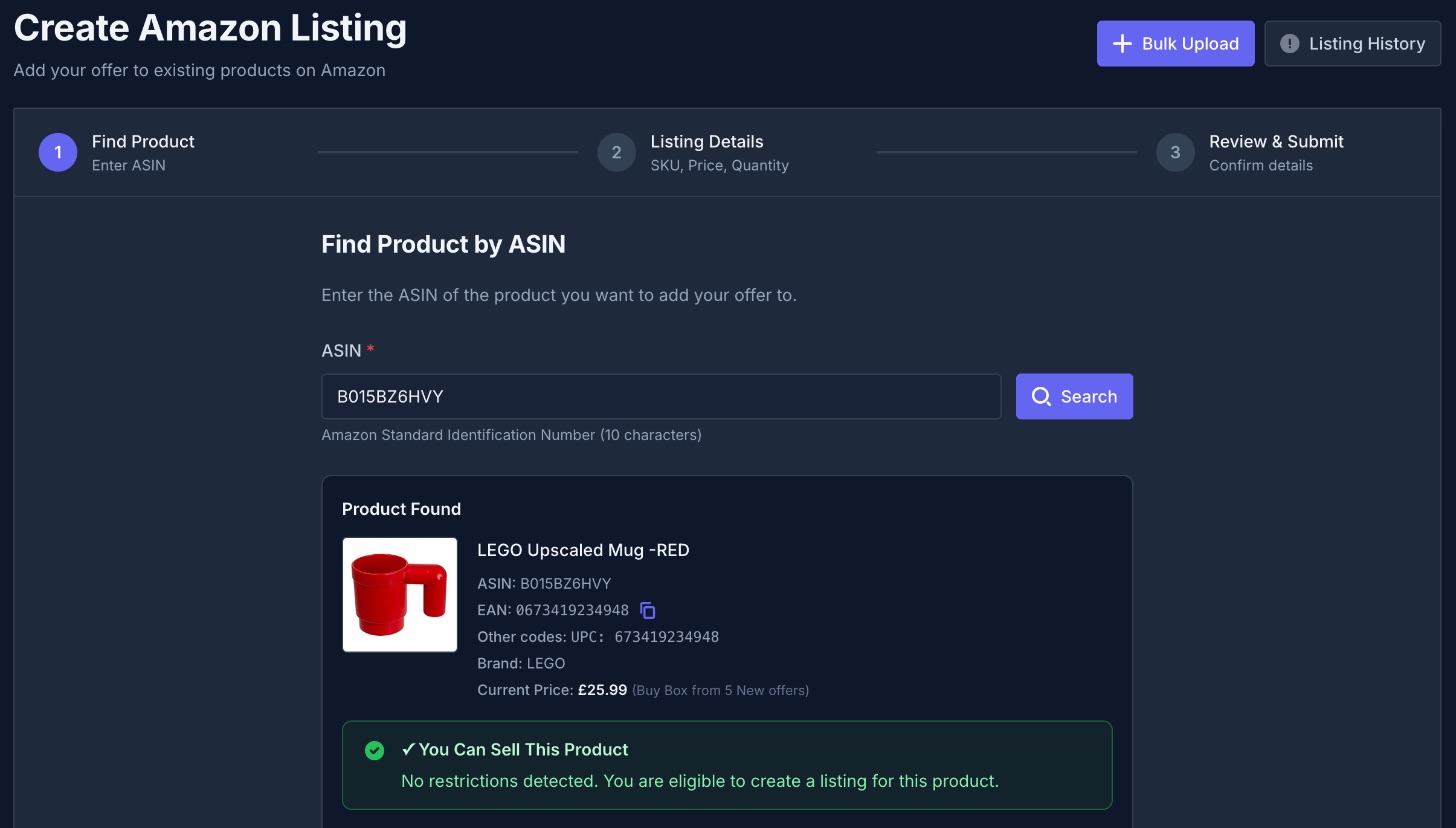
In the menu, open Amazon, then Listing Builder. The page is called Create Amazon Listing. At the top right are two buttons: Bulk Upload for many ASINs at once, and Listing History for everything you have listed.
The three steps
A single listing goes through three steps, shown across the top of the page: Find Product, Listing Details and Review & Submit. For a click by click walkthrough, see how to list a product on Amazon.
Find Product: what you see
Type a 10 character ASIN and click Search. SellerFuse shows:
- The product image, title, ASIN, brand and category.
- The EAN Amazon holds for the product, with a note if it was converted from a UPC or taken from a GTIN, plus any other codes. This is handy for matching against supplier invoices.
- Current Price: the Buy Box price and how many New offers there are, or the lowest price if nobody has the Buy Box right now.
- Whether you can sell it. You Can Sell This Product means no restrictions were found. Amazon Approval Required means you may be gated.
If approval is needed you can still click Continue Anyway. The listing is created but may show as inactive in your inventory until Amazon approves you. To check lots of ASINs for restrictions at once, use the Bulk Ungate Tool.
Listing Details: every field explained
| Field | What it does |
|---|---|
| Seller SKU | Required, up to 40 characters. Type your own, such as SF-PHONE-CASE-01, or click Auto Generate to build one from your custom SKU format. A SKU that includes your cost, such as SF-12.50-231126, lets Auto COGs read the cost back later. |
| Cost tracking | Optional cost of goods, prep fee and supplier. These feed your SKU format. If you have bought this ASIN before through the Purchasing Hub, a We think... note fills them in for you. |
| Condition | New, one of the used grades, or Refurbished. Any condition other than New shows a Condition Note box (up to 1000 characters). |
| Country of Origin (COO) | Optional. Open the list and start typing a country name to jump to it. |
| Product Tax Code | Optional. General, Non-Taxable, Books, Reduced Rate or Zero Rate. |
| Max Order Quantity | Optional limit on how many a customer can buy at once, 1 to 999. |
| Repricing Rule | The rule to assign when the listing syncs, or Manual (No Repricing) to price it yourself. |
| Price Guard (optional) | A min and max price. Fill both or neither. They are applied when the listing first syncs, so the repricer never goes below your min or above your max. |
| Price | Required. Shows the Buy Box price, with Quick Price Selection buttons for Buy Box plus 10%, 15% or 20%. |
| Fulfillment Method | FBA or FBM. For FBM, enter the Quantity you have to ship (it defaults to 0). |
| Marketplaces | UK only (recommended), or untick it to add Germany, France, Italy or Spain with a euro price for each. |
If no Buy Box price is available you will see a Potential Suppressed Buy Box warning, and you set the price yourself.
Want help choosing a rule? See how to set up the repricer or read about the SellerFuse repricer.
Review & Submit
The last step shows the product and every detail of your offer, including the rule and price guard. Click Back to Edit to change anything, or Create Listing on Amazon to send it. A green message confirms the offer was submitted. It can take a few minutes to appear on Amazon.
Listing History
Click Listing History to see every listing you created, with filters for All, Success and Failed. The On Amazon column tells you where each offer stands:
- Live: live and buyable.
- Listed: on Amazon, and it will show to buyers once it has stock.
- Not on Amazon yet: Amazon has not shown it yet.
- Error: Amazon reported a problem. Any issues Amazon returns are listed under it.
Click Check on a row to ask Amazon for its latest status.
More guides for the Listing Builder
- List up to 50 ASINs at once with Bulk Upload
- Auto generate SKUs
- Keep listings UK only or add EU stores
Common questions
Can I create a brand new product on Amazon?
No. The Listing Builder adds your offer to a product that already has an ASIN on Amazon.
Do I have to pick a repricing rule?
No. Leave it on Manual (No Repricing) and you can assign a rule later from the repricer.
What if I'm not approved to sell the product?
You can still create the listing, but it may stay inactive until Amazon approves you.
Still stuck?
Members get priority live chat from inside SellerFuse, from our UK team. Not a member yet? Ask in our Discord community, which is open to everyone.