Help Centre / Cost of goods
How to build SKUs that carry your cost with the Custom SKU Builder
Set up your own SKU format once, generate matching SKUs in the Listing Builder, and put the cost in the SKU so Auto COGS can read it back.
Why sellers use it
- Set your SKU format once and every new listing gets a matching SKU in one click.
- Put the cost in the SKU and Auto COGS can read it back into your cost of goods.
- A live preview shows the exact SKU before you save, with Amazon's 40 character limit checked.
Made up SKUs tell you nothing, and typing costs in twice is slow. The Custom SKU Builder lets you design one SKU format, such as a prefix, your cost and the date. The Listing Builder then builds every new SKU in that format. Include a Cost block and Auto COGS reads the cost straight back off the SKU, so your cost of goods fills itself in.
Where to find it
Open Settings, then Custom SKU Builder. It is open to every SellerFuse account.
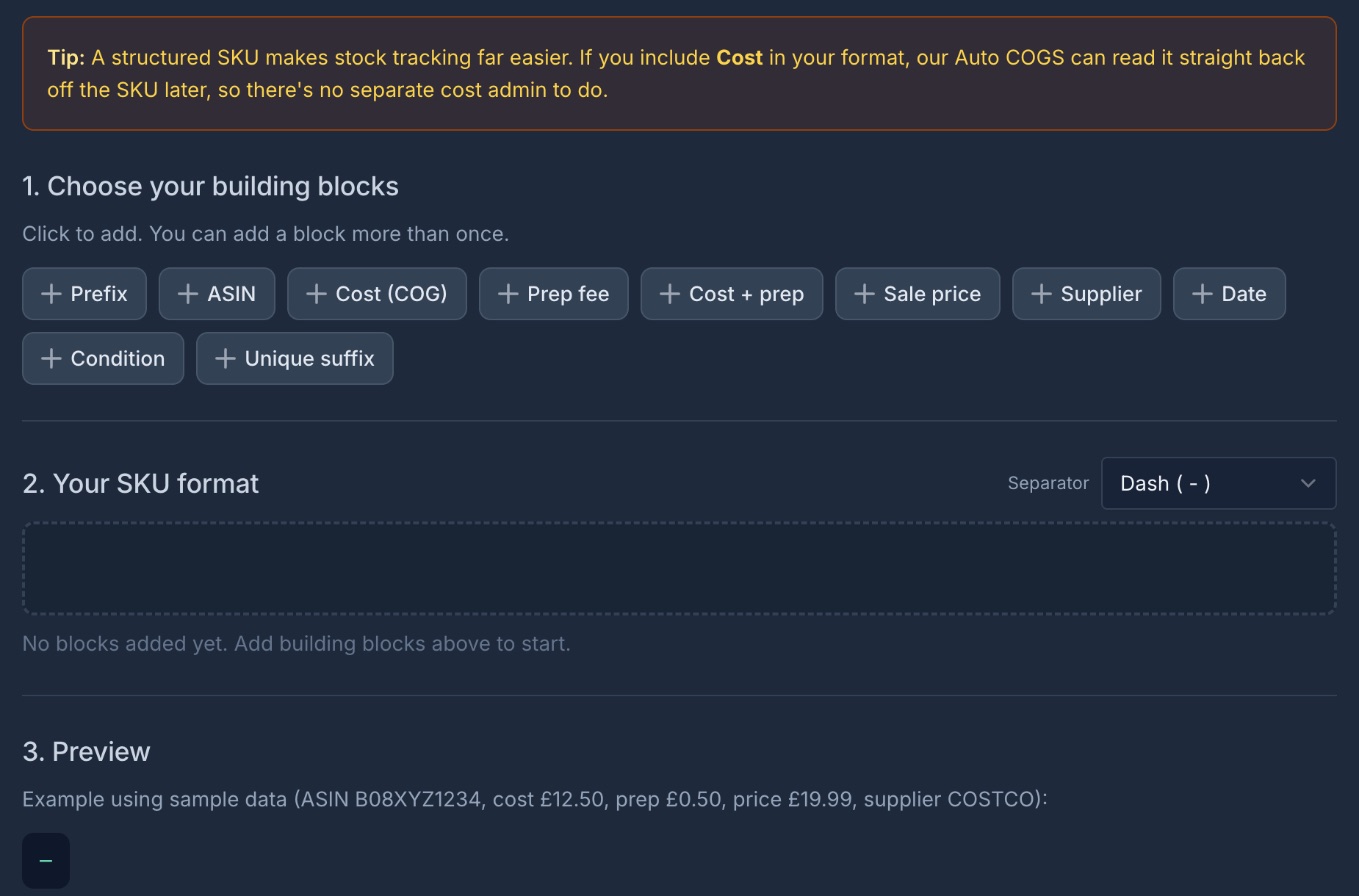
1Choose your building blocks
Click a block to add it to your format. You can add a block more than once.
- Prefix: fixed text you type, such as SF
- ASIN: the product ASIN
- Cost (COG): the cost you enter for the listing
- Prep fee: the per unit prep fee you enter
- Cost + prep: cost and prep added together
- Sale price: the price you list at
- Supplier: a supplier code or name you enter
- Date: today's date, DDMMYY unless you pick YYMMDD, YYYYMMDD, MMYY or YYMM
- Condition: the listing condition, such as NEW
- Unique suffix: random characters, 2 to 8 long, so every SKU is unique
Money blocks have a choice of Pounds (12.50) or Pence (1250).
2Set your SKU format
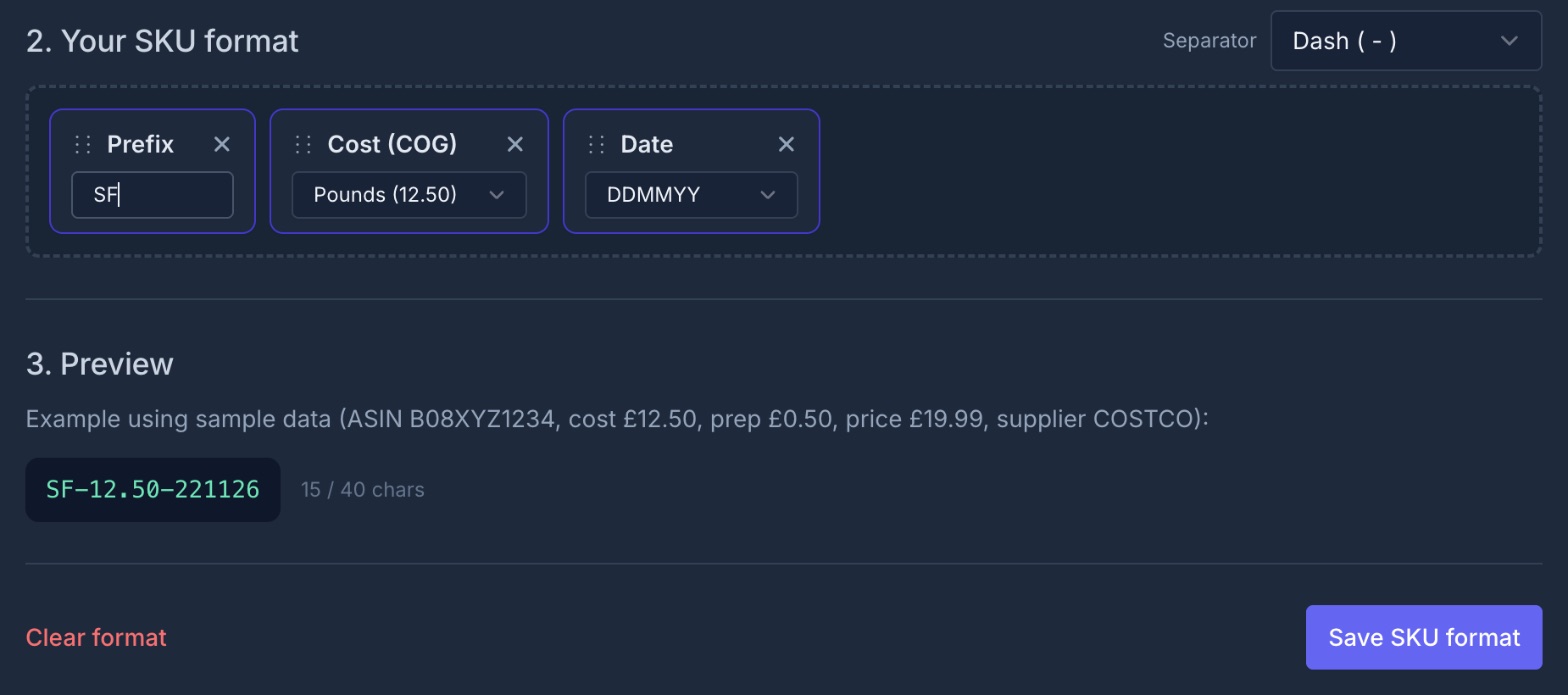
Drag the blocks into the order you want and remove any you don't need. Pick a Separator: Dash ( - ), Underscore ( _ ), Dot ( . ) or None.
3Check the preview and save
The Preview builds a SKU from sample data, with a cost of £12.50, and shows its length out of 40. Amazon allows 40 characters, so anything longer is trimmed and you see a warning. Click Save SKU format. Clear format removes it.
Recommended formats
Include a Cost (COG) block in your format and Auto COGS reads the cost back from the SKU, so new SKUs fill in their own cost of goods. These formats are our recommendations, short and easy to read:
| Setup | Example SKU |
|---|---|
| Prefix + Cost + Date, Dash separator, Pounds (12.50) | SF-12.50-231126 |
| Prefix + Cost + Unique suffix, Dash separator, Pounds (12.50) | SF-12.50-K7Q2 |
Tip: use the Cost (COG) block rather than Cost + prep, so your prep stays separate from the unit cost.
Use it in the Listing Builder
In the menu, open Amazon, then Listing Builder, and go to the listing details step.
- Under Cost tracking (optional), fill in Cost of goods (£), and Prep fee (£) and Supplier if your format uses them. The link Set up SKU format takes you back to the builder.
- Click Auto Generate next to Seller SKU. The SKU is built from your format, the price you set and the condition you picked.
A block with nothing to fill it, such as Supplier left blank, is left out. Characters Amazon doesn't accept in SKUs are removed. With no saved format, Auto Generate makes a random SKU starting SF-.
Getting the cost into cost of goods
The cost you type under Cost tracking goes into the SKU. Auto COGS reads it back from the SKU, so once the stock is on an inbound shipment in SellerFuse, the cost fills in from the SKU. You can see and check those costs in Cost of Goods, where the Auto COGS button lists what it has found. See how to fill in cost of goods from your SKUs.
Common questions
Does changing my format change my existing SKUs?
No. The format is only used when you click Auto Generate. SKUs already on Amazon stay as they are.
Can I still type my own SKU?
Yes. Type anything into Seller SKU instead of clicking Auto Generate.
Can I add more blocks after the cost?
Yes. SF-12.50-NEW-231126, with Condition added, still gives a cost of £12.50 for a phone case bought at that price.
Still stuck?
Members get priority live chat from inside SellerFuse, from our UK team. Not a member yet? Ask in our Discord community, which is open to everyone.