Help Centre / Listings and sourcing
How to check if you can sell 50 ASINs at once with Bulk Ungate
Paste or upload up to 50 ASINs and the Bulk Ungate Tool shows which you can sell, which need approval and which are restricted.
Why sellers use it
- Check up to 50 ASINs in one scan before you spend money on stock.
- See at a glance which products need approval, with a link to apply.
- Download every result as a CSV to share or keep with your buying list.
Buying stock you can't sell is an expensive mistake. Checking each ASIN in Seller Central one by one is slow. The Bulk Ungate Tool checks up to 50 ASINs against your own Amazon account in one go, sorts them into ungated, gated and restricted, and links you straight to Amazon's approval form for the gated ones.
Where to find it
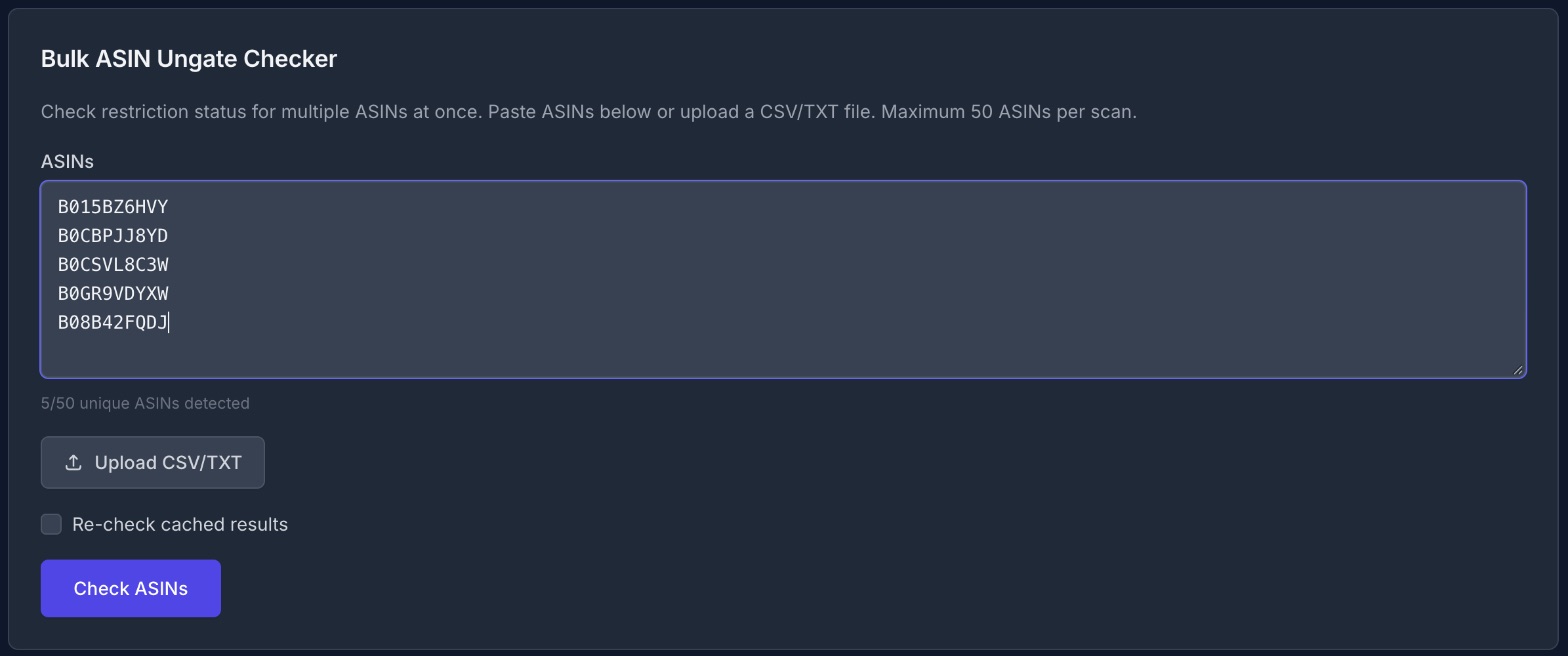
In the menu, open Amazon, then Bulk Ungate Tool. The page is called Bulk ASIN Ungate Checker.
1Enter your ASINs
Paste your ASINs into the ASINs box. You can separate them with commas, spaces or new lines. Or click Upload CSV/TXT to load them from a file. Duplicates are removed, and the counter shows how many unique ASINs it found, up to 50.
2Run the check
Click Check ASINs. A progress bar shows how many have been checked. ASINs you have checked before come back straight away from the saved result. To ask Amazon again instead, tick Re-check cached results before you start.
3Read the results
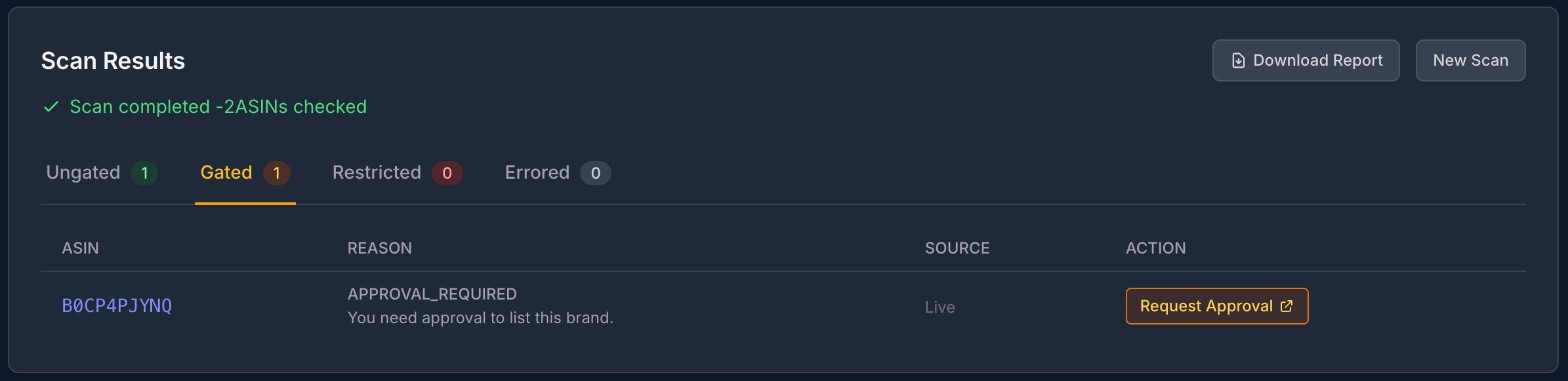
Results are split into four tabs:
| Tab | What it means |
|---|---|
| Ungated | No restrictions found. You can list it. |
| Gated | Amazon approval is needed. Click Request Approval to open Amazon's form. |
| Restricted | Restricted for another reason, so you can't simply apply. |
| Errored | The check failed. The reason is shown. Try again later. |
Each row shows the ASIN (linked to Amazon), Amazon's reason, and whether the result is Live or Cached.
4Download the report
Click Download Report for a CSV with the ASIN, status, reason code, reason message, approval link, whether it came from the cache and when it was checked.
Go back to past scans
Past Scans lists your last 20 scans with the date and counts for each tab. Click View to open the results again, or Download for the CSV.
Next steps
For ungated products, check the numbers with the Fee Calculator, then list them with the Listing Builder.
Common questions
Which condition does it check?
New. The check is for selling the product as new.
I got approved. Why does it still say Gated?
The saved result is from before your approval. Tick Re-check cached results and check again.
Can I check more than 50 ASINs?
Not in one scan. Run more than one scan.
Still stuck?
Members get priority live chat from inside SellerFuse, from our UK team. Not a member yet? Ask in our Discord community, which is open to everyone.