Help Centre / Listings and sourcing
How to list a product on Amazon with the Listing Builder
A step by step guide to adding your offer to an existing Amazon product in SellerFuse, from ASIN search to submitting the listing.
Why sellers use it
- List a product in three steps: find the ASIN, add your details, submit.
- Price from the Buy Box with one click instead of looking it up.
- Choose a repricing rule as you list, so the new offer is managed from day one.
Got stock on the way and need an offer on Amazon? The Listing Builder takes you from ASIN to live offer in three steps, and shows you the Buy Box price and whether you need approval as you go. This guide walks through a single listing.
Where to find it
In the menu, open Amazon, then Listing Builder.
1Find the product
Type the 10 character ASIN into the ASIN box and click Search. Check the product details that appear and make sure it is the right item.
Look at the eligibility box. You Can Sell This Product means you are clear to list. Amazon Approval Required means you may be gated. You can still continue, but the listing may stay inactive until Amazon approves you.
Click Continue to Listing Details (or Continue Anyway if approval is needed).
2Add your SKU
Enter a Seller SKU of up to 40 characters, such as SF-PHONE-CASE-01, or click Auto Generate. See how to auto generate SKUs.
3Choose the condition
Pick the Condition. For anything other than New, describe the item in the Condition Note.
4Set your price
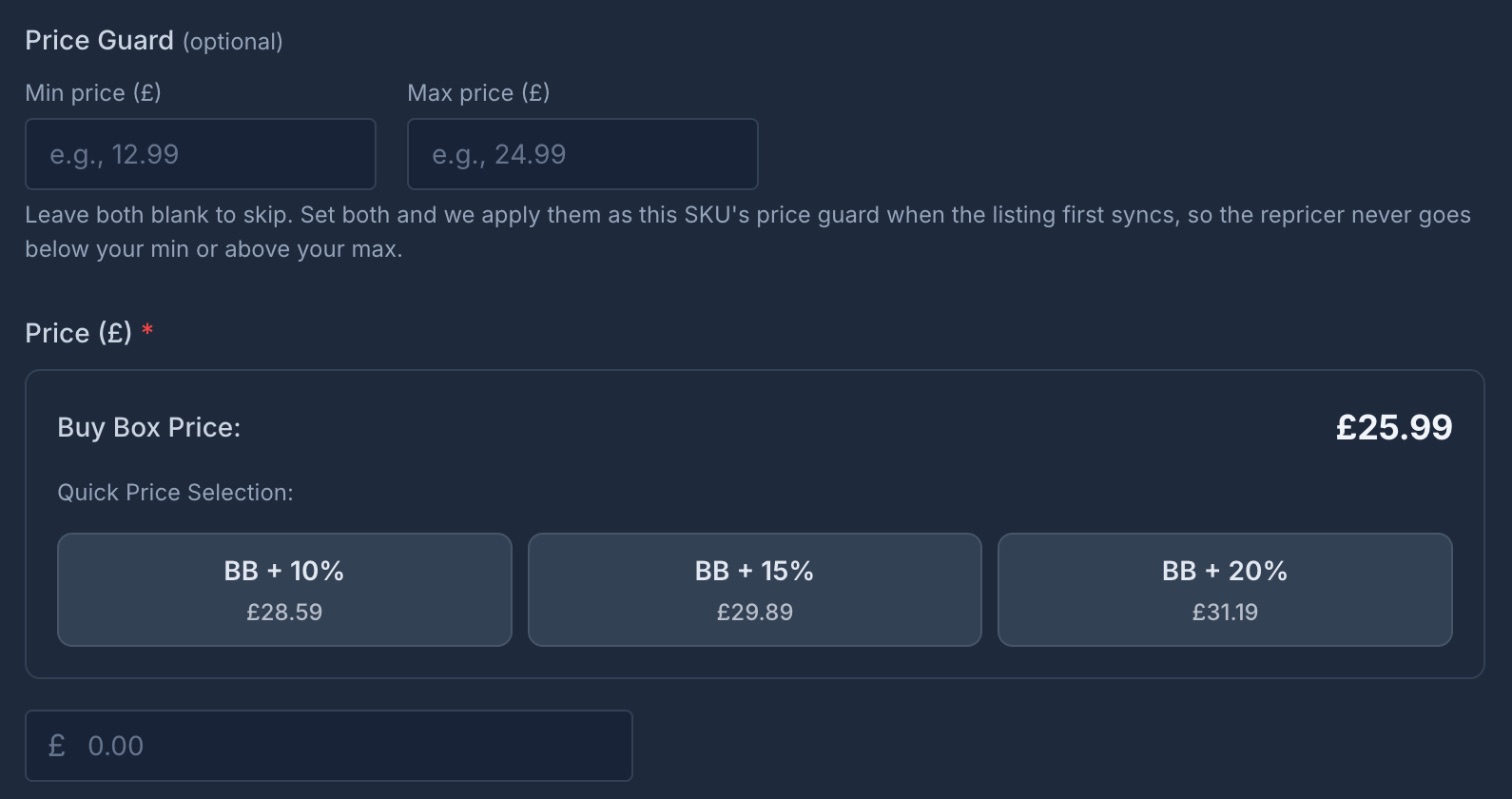
Enter your Price. The Buy Box price is shown above it, and the Quick Price Selection buttons set your price to the Buy Box plus 10%, 15% or 20%.
5Choose FBA or FBM
Under Fulfillment Method, pick FBA if you are sending stock to Amazon, or FBM if you ship it yourself. For FBM, enter the Quantity you have ready to ship.
6Set up repricing (optional)
Choose a Repricing Rule to assign when the listing syncs, or leave it on Manual (No Repricing). To stop the repricer going too low or too high, fill in both Min price and Max price under Price Guard (optional).
7Review and submit
Click Review & Submit. Check every detail, then click Create Listing on Amazon. It can take a few minutes for the offer to appear on Amazon.
8Check it went live
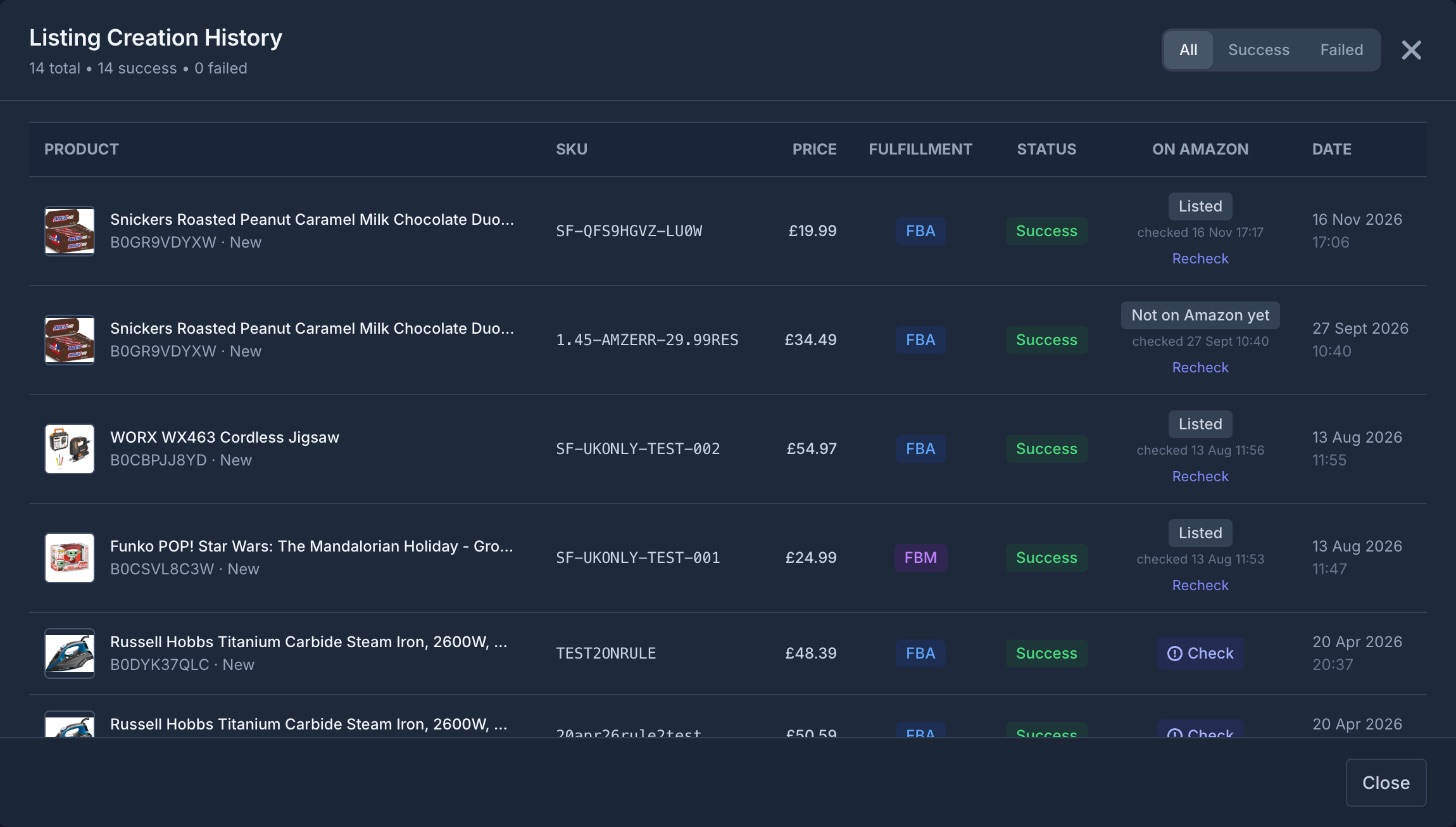
Click Listing History at the top of the page. The On Amazon column shows whether the offer is Live, Listed (waiting for stock) or Not on Amazon yet. Click Check to refresh it.
Want the full picture of every field? Read how to use the Listing Builder.
Common questions
Why does my new FBA listing show as Listed and not Live?
An FBA offer only shows to buyers once Amazon has stock for it. Send your stock in and it will go live.
Can I change the price after listing?
Yes. Your repricing rule takes over once the listing syncs, or you can set the price yourself if you chose Manual.
Where do I add my cost of goods?
You can type the cost in the optional Cost tracking fields to feed your SKU format. For profit figures, add costs against your shipments as shown in how to add your cost of goods.
Still stuck?
Members get priority live chat from inside SellerFuse, from our UK team. Not a member yet? Ask in our Discord community, which is open to everyone.