Help Centre / Orders and SKU analysis
How to read your Amazon orders and profit in Your Orders
Learn how Your Orders shows the profit on every Amazon order, with fee and VAT breakdowns, filters, summary cards and order badges.
Why sellers use it
- See the profit on every order after Amazon's fees, VAT and your real cost of goods.
- Hover over any fee or VAT figure to see exactly what makes it up.
- Filter to losses, refunds, FBM or MCF orders in one click.
Seller Central tells you what sold. It does not tell you what you made on each order once Amazon's fees, VAT and the cost of the stock are taken off. Your Orders does, for every order line, so you can spot a loss maker the day it happens rather than at the end of the month.
Where to find it
In the menu, open Amazon, then Your Orders.
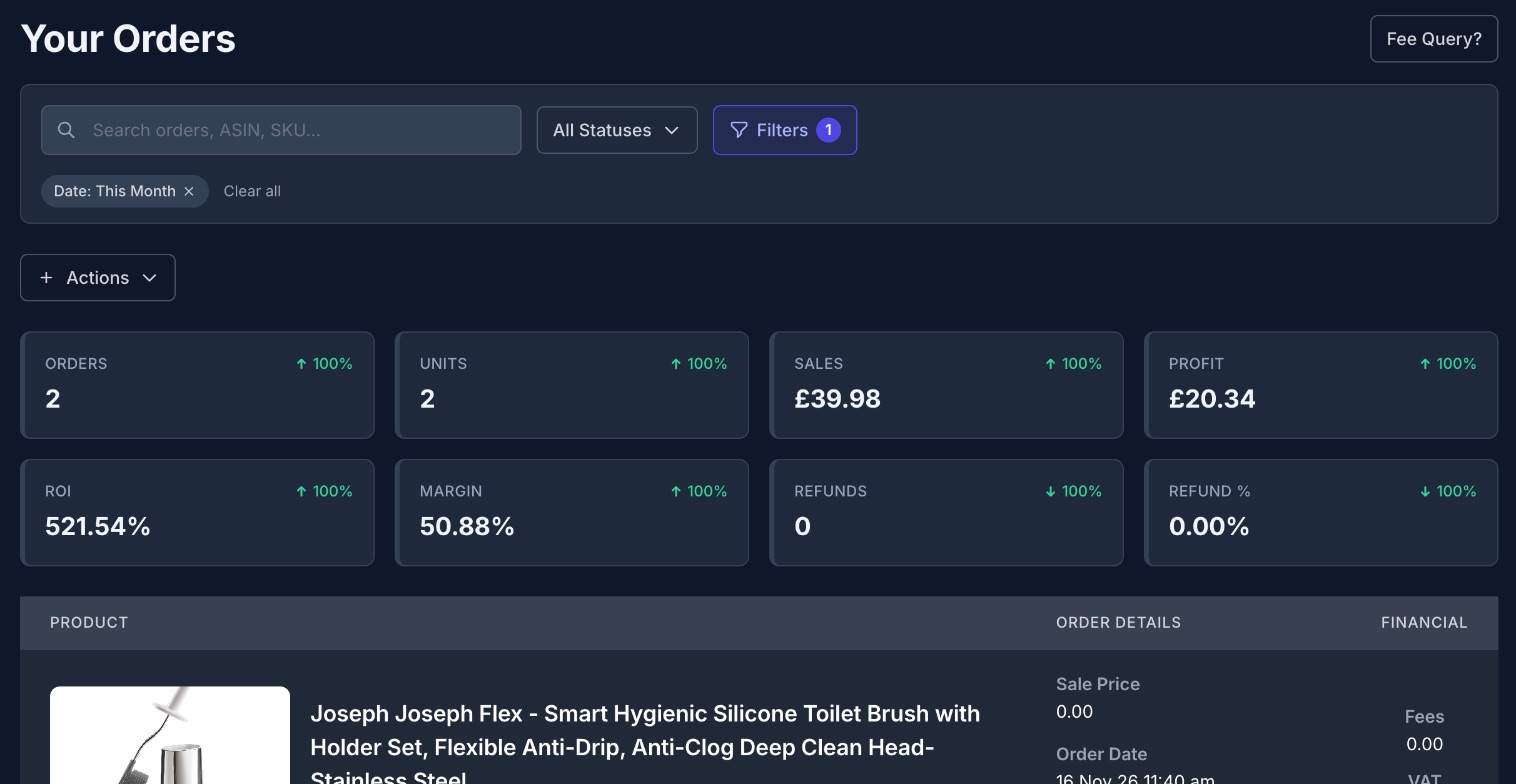
Find the orders you want
- Search: type an order number, ASIN, SKU or part of a product name.
- Status: the menu next to search. Choose from Shipped, Pending, Canceled, Refunded, Partially Refunded, Business Order, MCF Order, FBM Order, Needs Shipping Label, Removal Order, Ireland IOSS, Loss and Manual Sale.
- Filters: pick a Marketplace, and a Date Range of All Time, Today, Yesterday, Last 7 Days, This Month, Last Month or a Custom Range.
Loss shows orders that made a loss. If you haven't picked dates, it looks at the last 30 days.
Summary cards
Pick any date range other than All Time and cards appear above the orders: Orders, Units, Sales, Profit, RoI, Margin, Refunds and Refund %. Each shows the change against the same number of days just before, so Last 7 Days is compared with the 7 days before it.
What each order line shows
Every product on an order has its own line with:
- The product, SKU and ASIN, with any order type such as FBM, Removal Order or Manual sale
- Quantity Sold & COGs: hover to see the cost of goods and prep per unit, and the total for the units sold
- Sale Price, Order Date, status, Marketplace and Ships To
- Fees, VAT, ROI, Margin and Profit, which shows as Loss when it is below zero
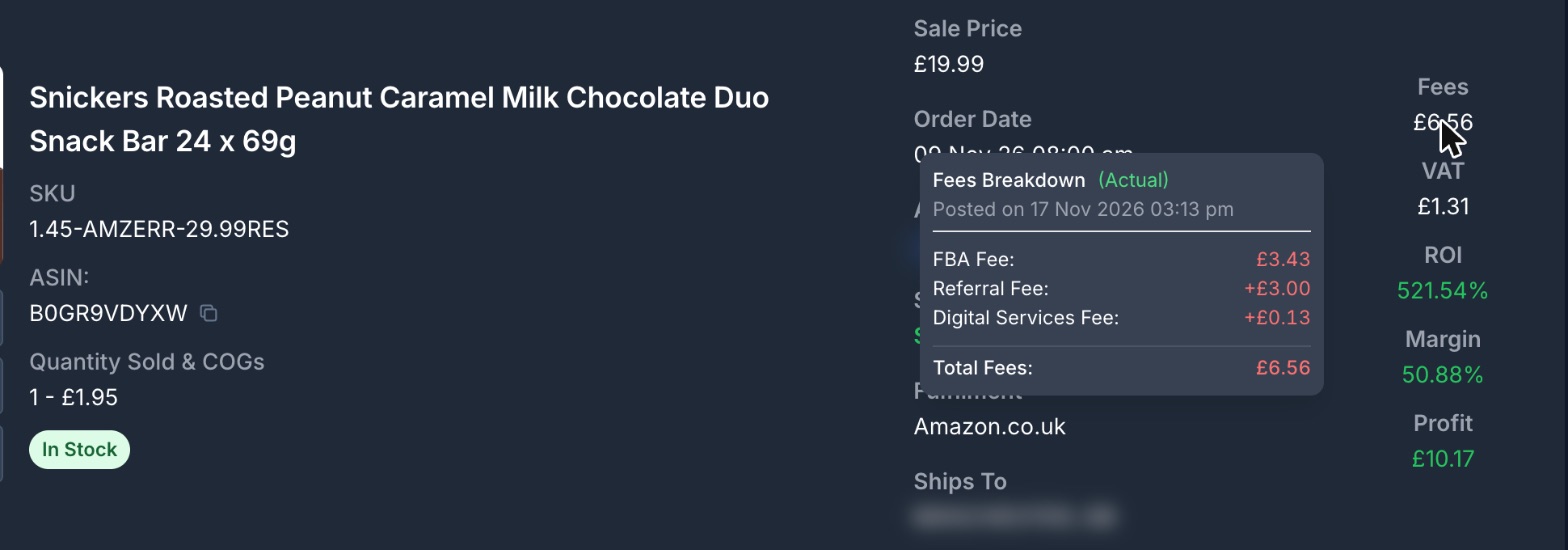
The fee breakdown
Hover over Fees to see Fees Breakdown. It lists the fees on that line, such as FBA Fee (or Shipping Label on FBM orders), Referral Fee, Digital Services Fee, Variable Closing Fee, Promotion Cost and Refund Fee, then Total Fees.
- (Actual) means Amazon has charged the order. These are the fees Amazon took, with the date they were posted.
- (Deferred - Estimate) means Amazon hasn't charged yet. You see Amazon's own estimate until the real fees arrive, then the figure switches over.
A promotion that shows as Pending will be confirmed by Amazon when the order ships. See why your fees might look different.
The VAT breakdown
Hover over VAT to see how it is worked out. On UK orders that includes VAT on Sales, VAT On COGs and On Fees, and then Total VAT. Orders to Ireland, Jersey, Guernsey and EU marketplaces show their own breakdown with IOSS tax. A green CR tag next to the VAT figure means a VAT credit you can reclaim, which is added to profit. The figures follow your VAT settings and the product VAT rate in Cost of Goods.
Refund badges
- Partial refund: part of the order was refunded. The sale still counts, with the refund taken off.
- Goodwill Refund Tracked: Amazon refunded the customer and no money was taken from you.
- A fully refunded line shows Total Loss and the Refund Reason where Amazon gives one.
Buttons on each order
- View Analytics: opens My SKU Analysis for that SKU in a pop up, with Open full page to see it in full.
- Invoice: opens an invoice for the order in a new tab.
- Shipping Cost: on FBM orders, adds what the postage label cost. See FBM costs and shipping.
Fee Query? and Actions
The Fee Query? button at the top explains where the fees come from. Actions lets you add a sale made outside Amazon.
Common questions
Why does an order show no cost of goods?
That shipment line has no cost yet. Use the Missing COGS tab to fill it in and the order updates.
Why don't I see the summary cards?
They only show for a date range. Choose Today, Last 7 Days, This Month or another range instead of All Time.
Can I show more orders per page?
Yes. Use Items per page at the bottom to show 30, 50 or 100.
Still stuck?
Members get priority live chat from inside SellerFuse, from our UK team. Not a member yet? Ask in our Discord community, which is open to everyone.