Help Centre / Cost of goods
How to find products with missing cost of goods in SellerFuse
Find every shipment line and product with no cost of goods using the Missing COGS tab, the Empty COGs Report and the Inventory Manager.
Why sellers use it
- A sale with no cost of goods shows more profit than you really made. Find the gaps fast.
- One tab lists every shipment line still waiting for a cost, with a running count.
- Download the gaps as a spreadsheet, fill them in, and import them back.
A missing cost is easy to miss and expensive to ignore: sales of that product look far more profitable than they are. SellerFuse shows you every product still waiting for a cost in three places, so you can close the gaps before they skew your figures.
Where to find it
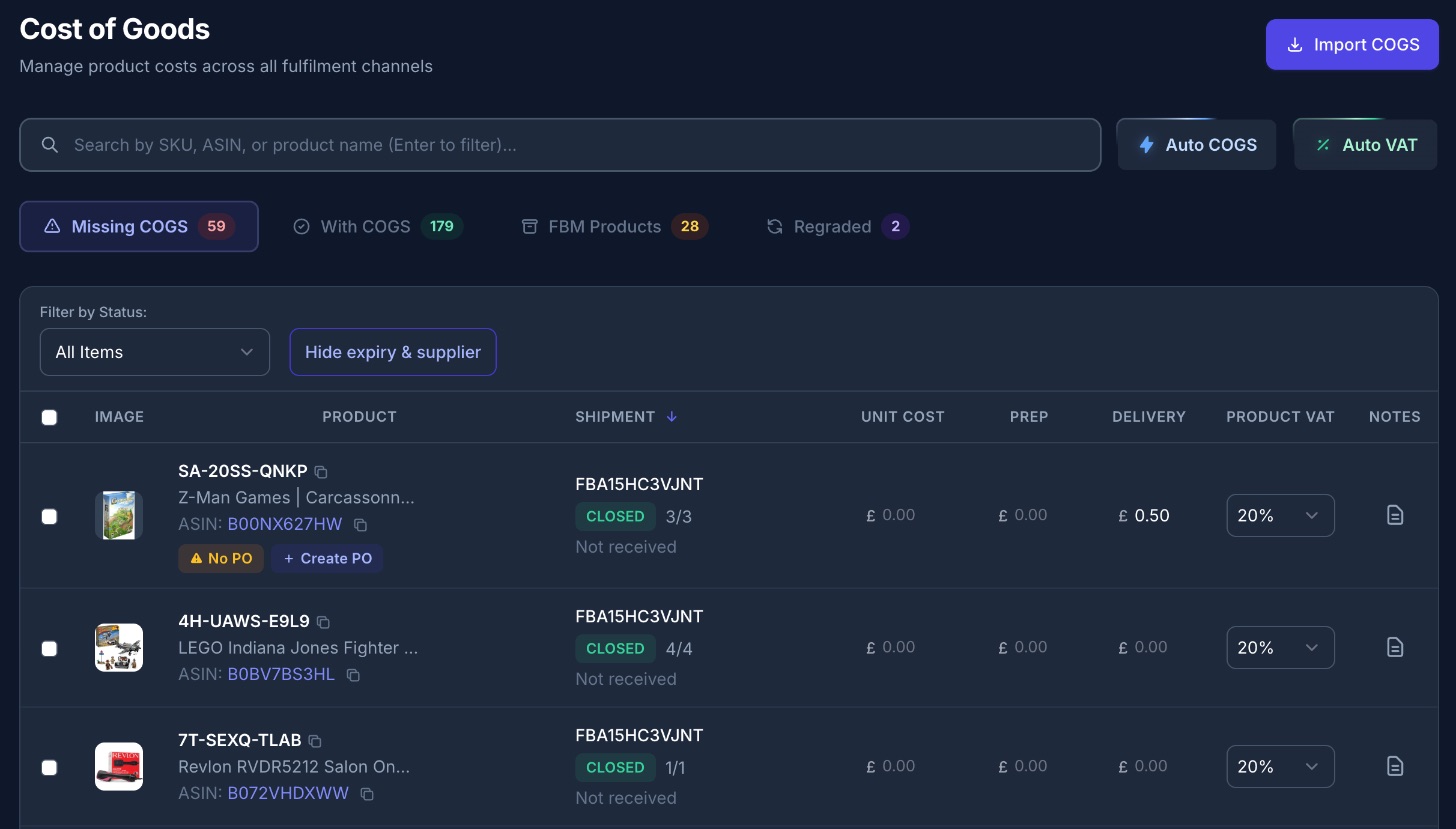
In the menu, open Amazon, then Cost of Goods. The Missing COGS tab opens first, and the number on the tab is how many lines still need a cost.
1Work through the Missing COGS tab
Each row is one product on one inbound shipment with no cost yet.
- Use Filter by Status to show All Items, Received Only or Not Received Only. Start with received stock, as those units are already selling.
- Change Items per page to 40, 100, 200, 500 or 1000 to see more at once.
- Search by SKU, ASIN or product name and press Enter.
Fill in the cost and click Save Changes. Saved lines move to the With COGS tab. See how to add your cost of goods.
2Check your FBM products
Open the FBM Products tab and click Missing COGs to see products you ship yourself that have no cost.
3Download the Empty COGs Report
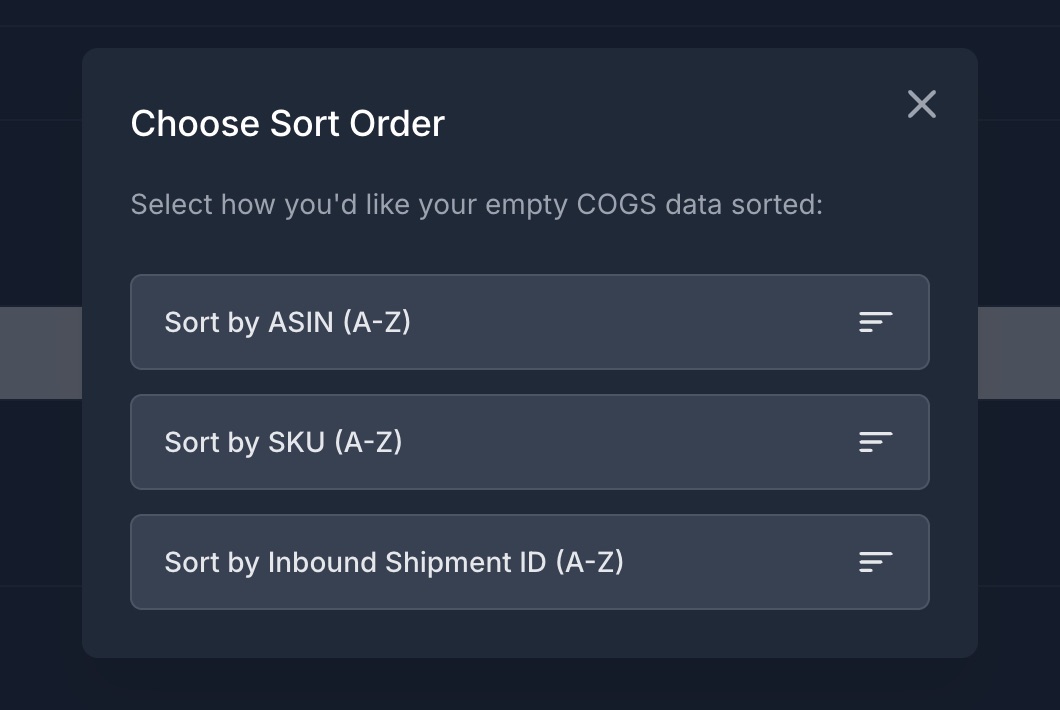
For a spreadsheet, open Reports, then Download Reports. Under Cost of goods, click Empty COGs Report and choose a sort order: Sort by ASIN (A-Z), Sort by SKU (A-Z) or Sort by Inbound Shipment ID (A-Z).
The file lists every shipment line with no cost, including its ASIN, item name, SKU, inbound shipment ID, quantity shipped and received, and empty columns for cost, prep, delivery, supplier and VAT rate. Fill it in and upload it with an import.
4Filter the Inventory Manager
Open Amazon, then Inventory Manager, and set Show to No COGs entered. This gives you the listings with no cost alongside their stock. No prep costs in the same list finds products with no prep cost.
Fill the gaps faster
- Auto COGS reads costs you have already written into your SKUs.
- Fill in cost of goods copies your last cost for a SKU onto every new shipment, so fewer gaps appear.
- Import costs you hold in a spreadsheet or another tool.
Common questions
Why is a line I filled in still on Missing COGS?
The cost was not saved. Enter it again and click Save Changes before leaving the page.
Do I need costs for shipments Amazon hasn't received?
Not yet. Stock Amazon has not received is never used to cost a sale, but adding the cost now saves a job later.
Can I enter a cost of £0?
A line at £0 still counts as missing, so it stays on the Missing COGS tab and in the Empty COGs Report.
Still stuck?
Members get priority live chat from inside SellerFuse, from our UK team. Not a member yet? Ask in our Discord community, which is open to everyone.