Structure breeds success. Now, I’m not a mentor by any means, but at Sellerfuse we love a little bit of structure!
Why? You might ask. Well, it’s because if you have a working structure, then you have full control of your business. Leading on from this, if you have full control of your business, you are much more efficient than another unorgnanised seller.
Increased efficiency means that you’ll be able to make faster decisions, saving time, and you’re more likely to increase your profitability.
Let’s be honest, that’s all we are interested in. In fact, I think that this is so important for Sellers, that I’ve decided to make a Kanban Board for Online Sellers. We love developing new tools for our loyal members, and this is something that you’ll definitely be able to benefit from.
Whether you’re planning your weekly meetings with your Virtual Assistants, or simply planning stock-takes… you can write down here whatever you want.
More than a To Do List
It’s a completely private board, which will be available for Team Owners only. This means that your Virtual Assistants won’t be able to see it too. They have their own task board.
We made this decision, because sometimes you might be planning a meeting with your VA, or making notes about their performance. Their primary goal should be sourcing leads for your business, so in many ways they won’t actually need to view a Kanban Board.
If you have circumstances where you’d like your Virtual Assistant, or Team Member to have access to the Board, let us know and we will be able to consider this.
We even recommend this for your Seller Central cases, such as chasing reimbursements.
Using the Online Seller Kanban Board
Firstly, I’d like to admit that it needs a better name! However, I’m happy to announce the release of this, and using this Kanban Board really couldn’t be much easier.
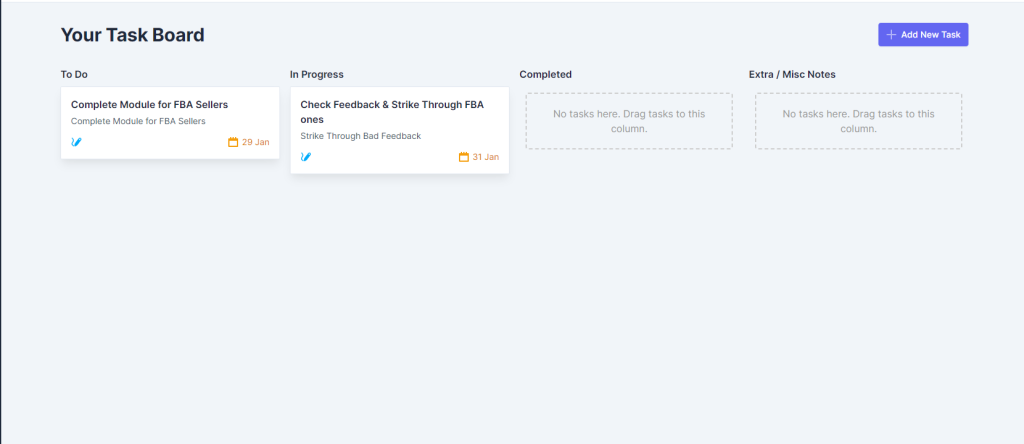
When you open up Your Task Board, you’ll find four empty columns. To Do, In Progress, Completed & Extra / Misc Notes.
To add a new task to this board, simply press the Add New Task button, which will open up a form that you need to complete.
The Add New Task form consists of Title, Description and Status.
We added as little as possible, to make it simple, and fast for you to use. Simply enter a Title, Description and pick the desired Status for your Task. Then, add the Task to your board, and you’ll see it in your list.
You can then drop and drag these tasks, moving them into the different sections. For example, the most common thing to do is to create a task card with a ‘To Do’ status. I’ve really built this in mind to be the best to do list for amazon sellers.
Then, once you’ve made a start on the task, it would go to in progress, before you move it to completed.
Team Owners will also have the option to edit the Task, as you may need to edit the title or description… or even add in sub-tasks.
If you aren’t sure on Subtasks, these are tasks which would be associated to the main task, which you’d need to complete before you can finish the Main Task.
Using an Example, let’s say you have a task to Send a Parcel into Amazon. Your subtask would be to Print the Shipping Label. However, you don’t want to waste time adding that to your Task Board in the first place.
We have the shipment manager for that!
A better example may be an application to get ungated. You apply to Ungate a certain category, and a sub-category could be to chase it up in 3 days if no reply. The possibilities are limitless!
That’s how our Kanban Board works. I’m being biased, but think it’s a great feature addition & will definitely help Amazon FBA sellers to stay organised.
We aren’t finished yet, we are excited to announce that there are some more tools being released very soon! Keep an eye out for updates and remember, if you have any feature requests, just let us know!