Help Centre / Listings and sourcing
How to use Storefront Stalker to track other sellers' products
Learn how Storefront Stalker watches other Amazon sellers' storefronts, flags every product they add or remove, and helps you check profit.
Why sellers use it
- See every new product another seller adds to their storefront, without checking it by hand.
- Filter new finds by stock and check fees and profit before you buy.
- Export a seller's full ASIN list to a spreadsheet in one click.
Successful sellers in your niche have already done the research on what sells. Storefront Stalker watches their Amazon storefronts for you, takes a snapshot of every ASIN they list, and flags each product they add or remove. You get a feed of fresh sourcing leads, with price, fees and stock, instead of scrolling storefronts every morning.
Where to find it
In the menu, open Amazon, then Storefront Stalker. The dashboard is called Storefront Stalker Command Center.
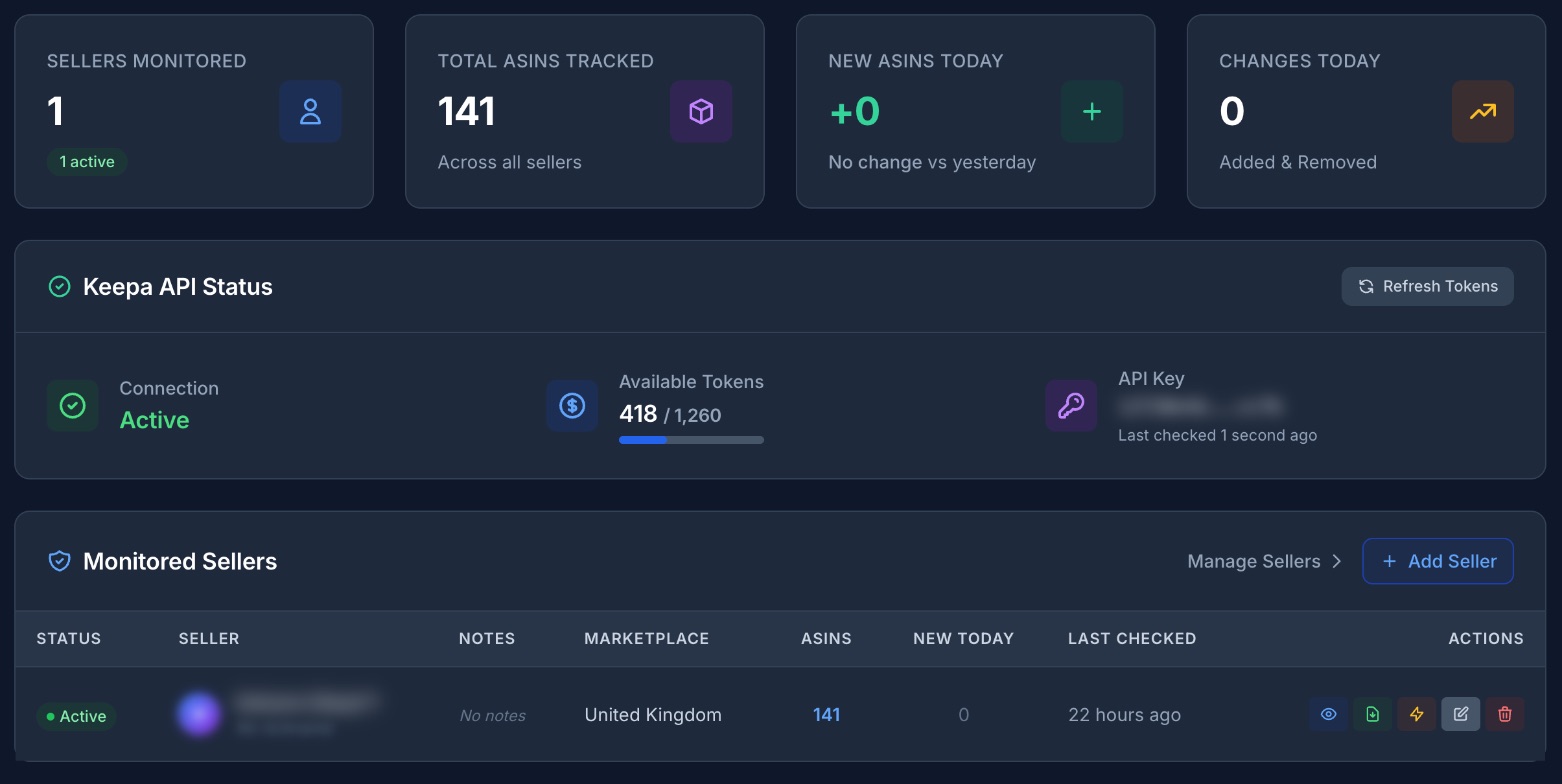
The dashboard
Four cards sit across the top:
- Sellers Monitored: how many sellers you watch, and how many are active.
- Total ASINs Tracked: products across all watched storefronts.
- New ASINs Today: products added today, compared with yesterday.
- Changes Today: products added and removed today.
Below them, Monitored Sellers lists each seller with their status, nickname, notes, marketplace, ASIN count, how many were added since the last check, and when they were last checked. The buttons on each row let you view their ASINs, export the ASIN list, check now, edit or remove the seller.
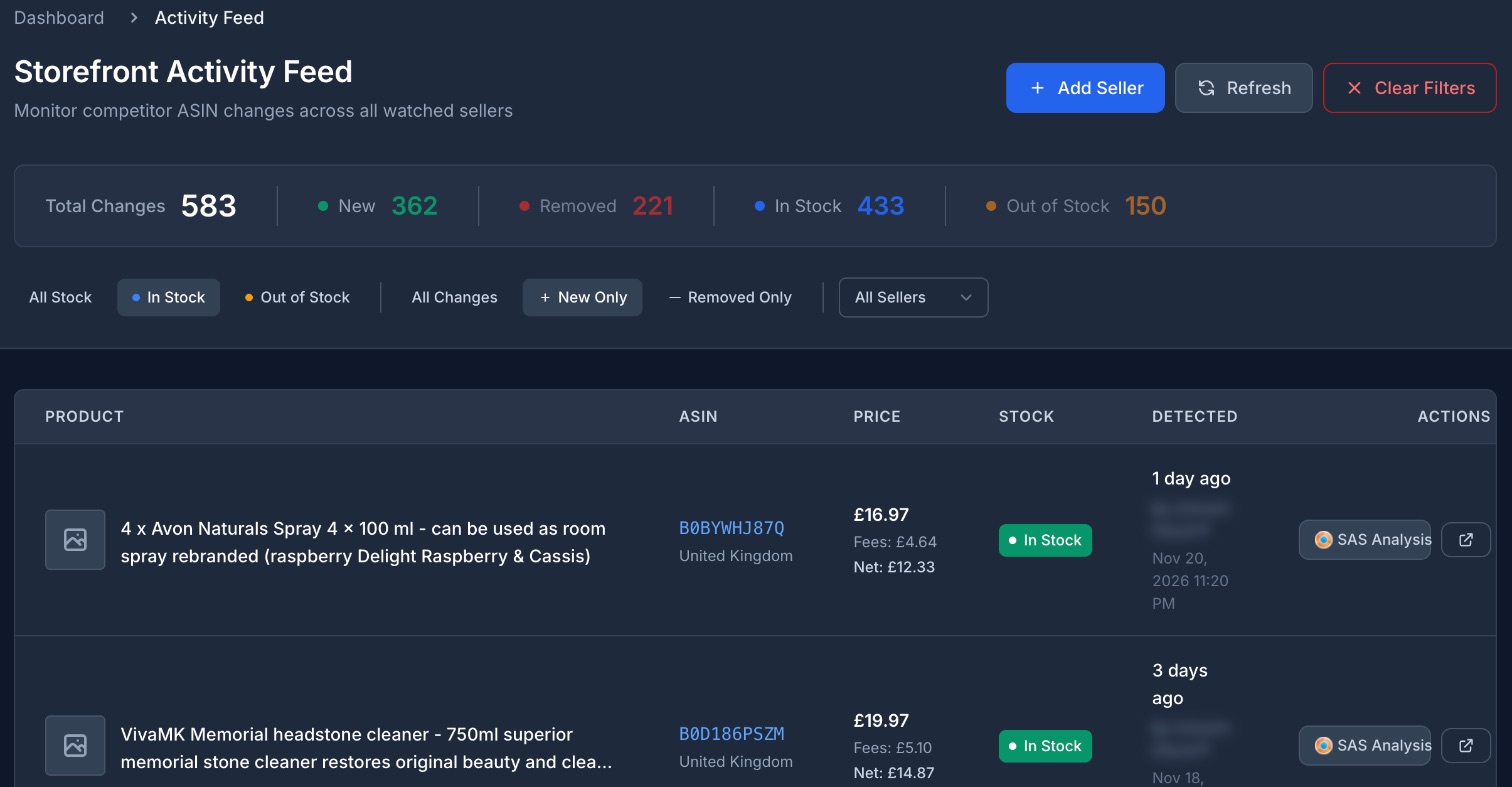
Recent Activity Feed shows the latest products added across all your sellers, with the price, estimated fees and stock status.
Adding sellers
Click Add Seller to Monitor, enter the seller's Amazon Seller ID, pick the marketplace and how often to check. SellerFuse imports their storefront straight away and shows progress as it goes. The full walkthrough is in how to add a seller to Storefront Stalker.
How checks work
Each seller is checked on the schedule you choose: Daily, Every 2 days, Every 3 days, Weekly or Manual only (I'll check it myself). Each check compares the storefront with the last snapshot. New ASINs are recorded as added and missing ones as removed. Click Force Check Now on a row to check a seller straight away.
If a seller can't be checked, their status changes from Active to paused. Hover over the badge to see the reason, and click Resume to put them back on the schedule.
The activity feed
Click View All Changes on the dashboard to open the Storefront Activity Feed. It lists every change across your sellers, with totals for New, Removed, In Stock and Out of Stock.
Filter it to find the leads that matter:
- Stock: All Stock, In Stock or Out of Stock.
- Change type: All Changes, New Only or Removed Only.
- Seller: All Sellers or one seller.
Check profit on a new product
Click Calculate on any product in the Recent Activity Feed on the dashboard to open the Profit Calculator. Enter your buy price and it works out your profit after Amazon's fees as you type. Click Refresh to update the product's price and data. In the full activity feed, look up any ASIN in the Fee Calculator.
For a full breakdown with VAT, use the Fee Calculator. To see if you can sell a batch of these products, run them through the Bulk Ungate Tool.
Nicknames, notes and exports
Click Edit seller to give a seller a nickname, such as "Main Competitor", add up to 2000 characters of notes, or change how often they are checked. Export ASIN List downloads every ASIN in that seller's storefront.
How many sellers can I watch?
Storefront Stalker gets storefront data from Keepa. Without your own Keepa API key, you can watch 3 sellers on the shared key, and the dashboard shows how many slots you have left. To watch more, add your own Keepa API key in Settings, then Integrations. The dashboard then shows your key's connection, available tokens and a Refresh Tokens button.
A simple daily routine
- Open the dashboard and look at New ASINs Today.
- Click View All Changes, then filter to New Only and In Stock.
- Check the profit on anything that looks interesting: click Calculate in the dashboard feed, or enter the ASIN in the Fee Calculator.
- Check the ones that make a profit in the Bulk Ungate Tool.
- List the winners with the Listing Builder.
It turns other sellers' research into a short list of leads you can check in a few minutes.
Common questions
Which marketplaces can I watch?
United States, United Kingdom, Germany, France, Japan, Canada, Italy, Spain, India and Mexico.
Why does my first check show every ASIN as new?
The first import creates the starting snapshot. From the next check on, only real additions and removals are recorded.
Can I watch the same seller in two marketplaces?
Yes. Add them once for each marketplace.
Still stuck?
Members get priority live chat from inside SellerFuse, from our UK team. Not a member yet? Ask in our Discord community, which is open to everyone.