Help Centre / Listings and sourcing
How to check Amazon fees and profit before you buy with Fee Calculator
Enter an ASIN in the SellerFuse Fee Calculator to see Amazon's referral, FBA and digital services fees, VAT, net profit and ROI before you buy.
Why sellers use it
- See your profit and ROI on any ASIN before you spend a penny on stock.
- Fees come from Amazon for that product and price, not a rough guess.
- VAT is worked out from your own VAT settings, so the profit is real.
A product that looks cheap can lose money once Amazon's fees and VAT are taken off. The Fee Calculator gets the fees from Amazon for any ASIN at your chosen price, adds your buy price and prep, and shows your net profit and ROI. Change a number and it works it out again, so you can find the price that makes a product worth buying.
Where to find it
In the menu, open Amazon, then Fee Calculator.
1Enter the ASIN
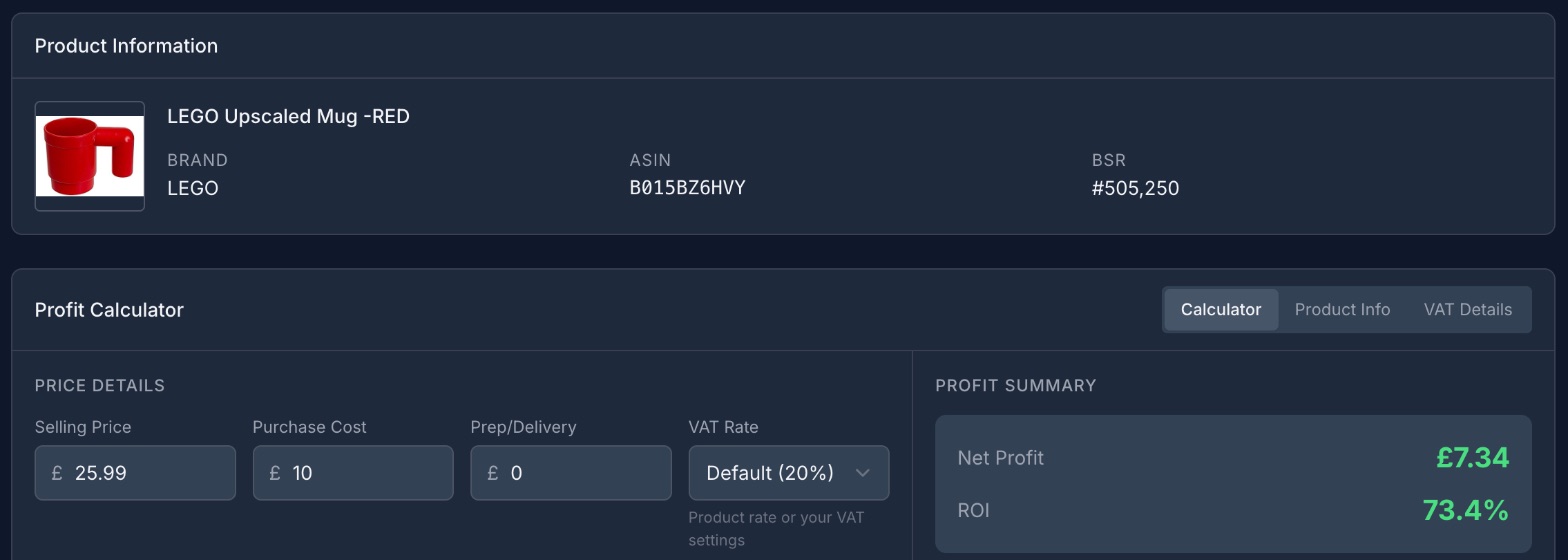
Type the ASIN, for example B0XXXXXXXX, into the box and click Calculate. Use the ASIN, not a SKU. If you enter a SKU, the page asks for an ASIN instead.
You will see the product's title, brand, ASIN and Best Sellers Rank.
2Set the price and your costs
Under Price Details on the Calculator tab:
- Selling Price: starts at the latest price SellerFuse holds for the ASIN, or £19.99 if it has none. Type the price you expect to sell at.
- Purchase Cost: starts at an estimate of 40% of the selling price. Type what you will really pay.
- Prep/Delivery: your prep and delivery cost per unit.
- VAT Rate: Default uses the product's rate or your VAT settings. You can pick 0%, 5% or 20% to see the difference. This is an estimate only and does not change the product's VAT rate.
When you change the selling price, purchase cost or VAT rate, the fees are fetched again from Amazon.
3Read the fees
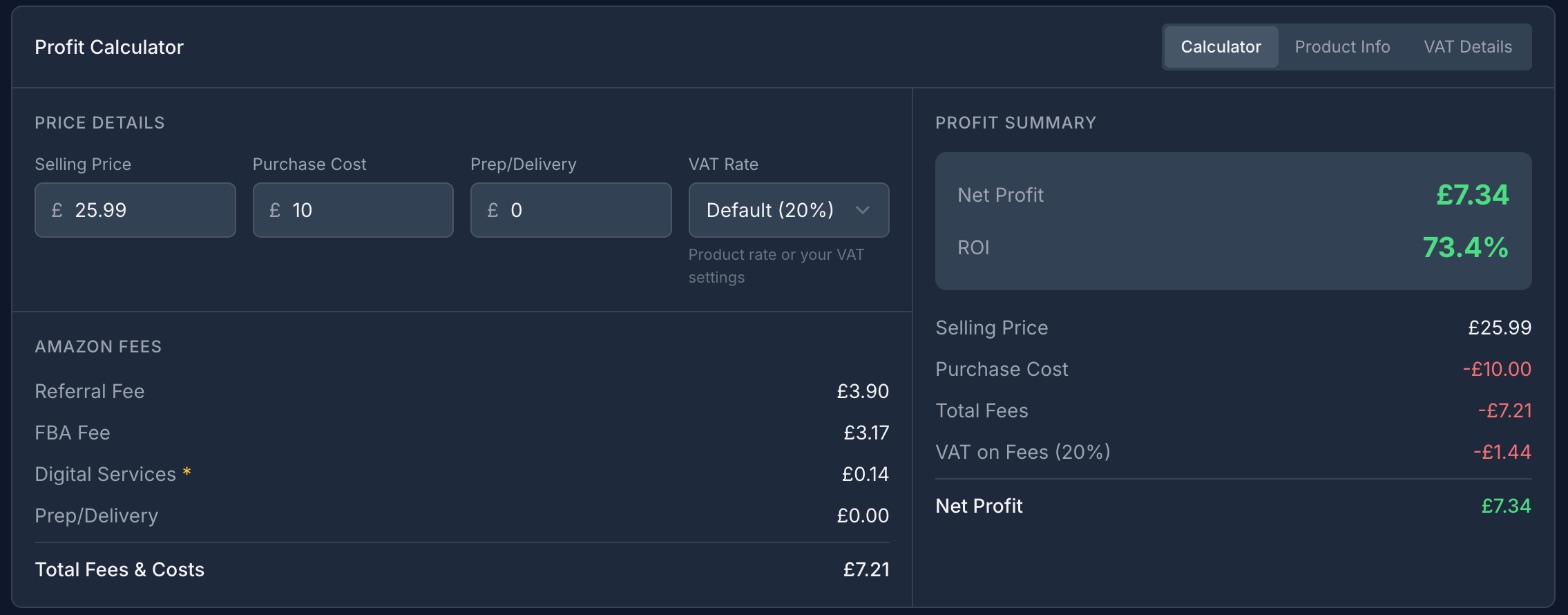
Amazon Fees lists the Referral Fee, FBA Fee, Digital Services fee and your Prep/Delivery, then Total Fees & Costs. If you already sell the ASIN, SellerFuse uses your own SKU for the fee estimate.
4Read the profit
Profit Summary shows your Net Profit and ROI, green when positive and red when negative.
5Check the VAT
Open the VAT Details tab to see VAT on sales, on your cost of goods, on fees and on digital services, and the total. If you are VAT registered, the profit takes off the Total VAT. If you are not, it takes off only the VAT Amazon charges on your seller fees. Set this up once in your VAT settings.
The Product Info tab shows the title, brand, category, Best Sellers Rank and dimensions.
Common questions
Where do the fees come from?
From Amazon, for that ASIN at the selling price you enter.
Why is my purchase cost already filled in?
It is a starting estimate of 40% of the selling price. Replace it with your real cost.
Can I check whether I'm allowed to sell it?
Use the Bulk Ungate Tool to check up to 50 ASINs at once.
Still stuck?
Members get priority live chat from inside SellerFuse, from our UK team. Not a member yet? Ask in our Discord community, which is open to everyone.