Help Centre / Reimbursements and shipments
How to use Shipment Manager to track FBA shipments and missing units
Follow every FBA shipment from working to closed, see how many units Amazon received, spot missing units and check each shipment's expected profit.
Why sellers use it
- Follow every FBA shipment you send in, from creation to closed, in one list.
- Spot shipments where Amazon received fewer units than you sent.
- See the expected profit of each shipment before the stock sells.
Every shipment you send to Amazon is money tied up in stock. You need to know it arrived, that Amazon counted every unit, and what it should make you. Shipment Manager lists all your FBA shipments with how much has been received, flags missing units once a shipment closes, and shows the expected profit and costs for each one.
Where to find it
In the menu, open Amazon, then Shipment Manager. You can also click View All on the FBA Shipments card on your dashboard.
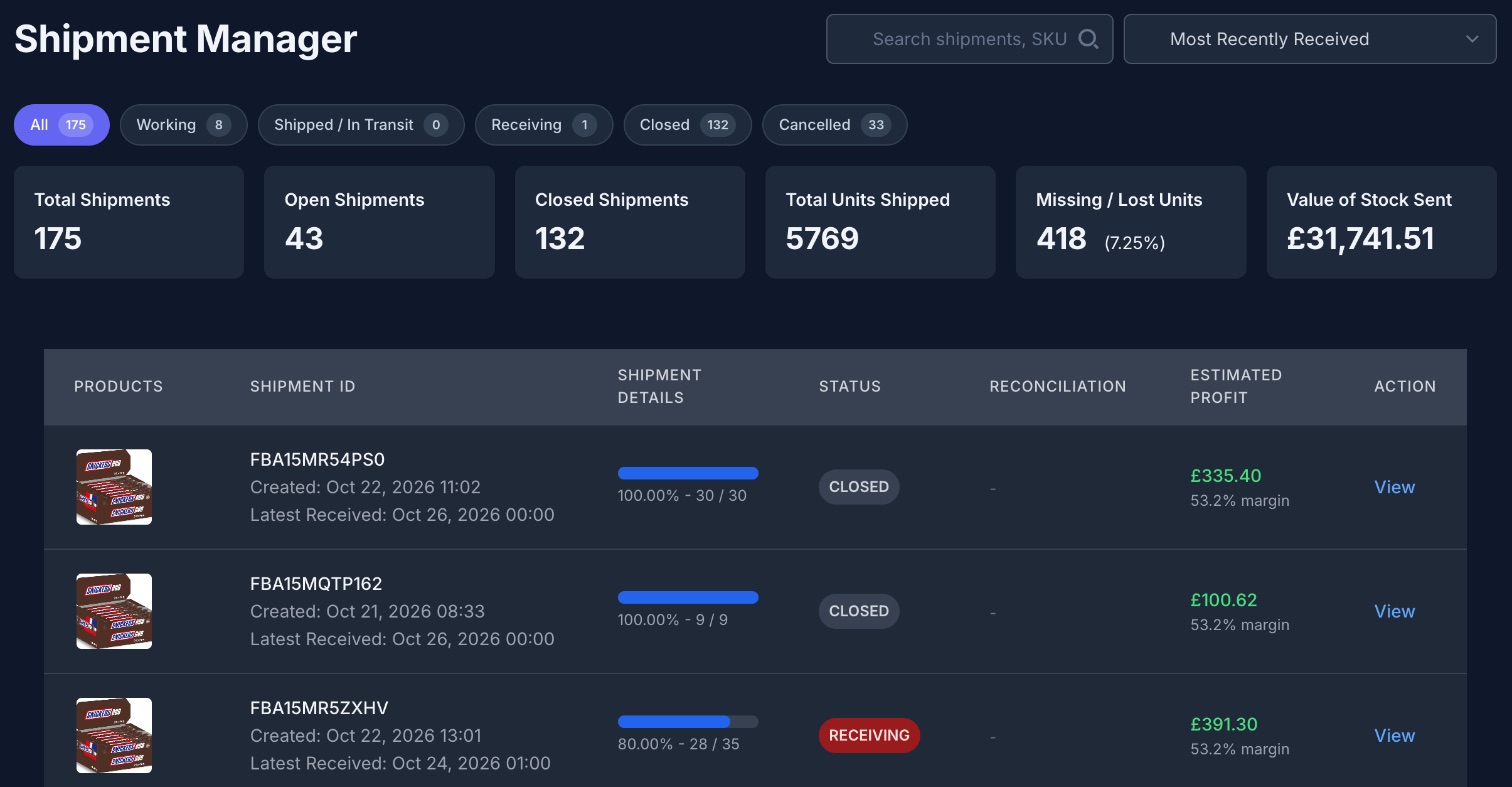
The figures at the top
- Total Shipments, Open Shipments and Closed Shipments.
- Total Units Shipped across all your shipments.
- Missing / Lost Units: units missing from closed shipments, with the percentage of everything you shipped.
- Value of Stock Sent: the cost of the stock in your shipments.
Find a shipment
Use the status filters to show All, Working, Shipped / In Transit, Receiving, Closed or Cancelled shipments. Each shows a live count.
Search by shipment ID, SKU or ASIN in the search box. To change the order, open Filter and pick Most Recently Received, Oldest Received First, Creation Date: Newest First, Creation Date: Oldest First, Cost: Most Expensive to Cheapest, Size: Largest to Smallest or Received Rate: Lowest to Highest. Sorting by received rate puts the shipments with the lowest share of units received at the top.
Read the shipment list
| Column | What it shows |
|---|---|
| Products | Images of the products in the shipment. |
| Shipment ID | Amazon's shipment ID, when it was created and when units were last received. |
| Shipment Details | The percentage received, and units received out of units shipped. |
| Status | Amazon's status for the shipment. CLOSING means every unit has been received but Amazon has not closed it yet. |
| Reconciliation | Missing units on a closed shipment, or the case you have logged for it. |
| Estimated Profit | What the shipment should make, and its margin. |
| Action | View opens the full breakdown. |
Spot missing units
When Amazon closes a shipment with fewer units received than you sent, the Reconciliation column shows how many are missing, for example "3 Missing", and a Log Case link. The link opens that shipment on the Shipments tab of the Reconciliation Hub, where you see the claim deadline and record your case. See how to claim missing shipment units.
Once you have logged a case, the column shows its status instead: Case Opened with your case number, Resolved with any amount reimbursed, or Written Off.
To find short shipments fast, filter to Closed and sort by Received Rate: Lowest to Highest.
Open a shipment
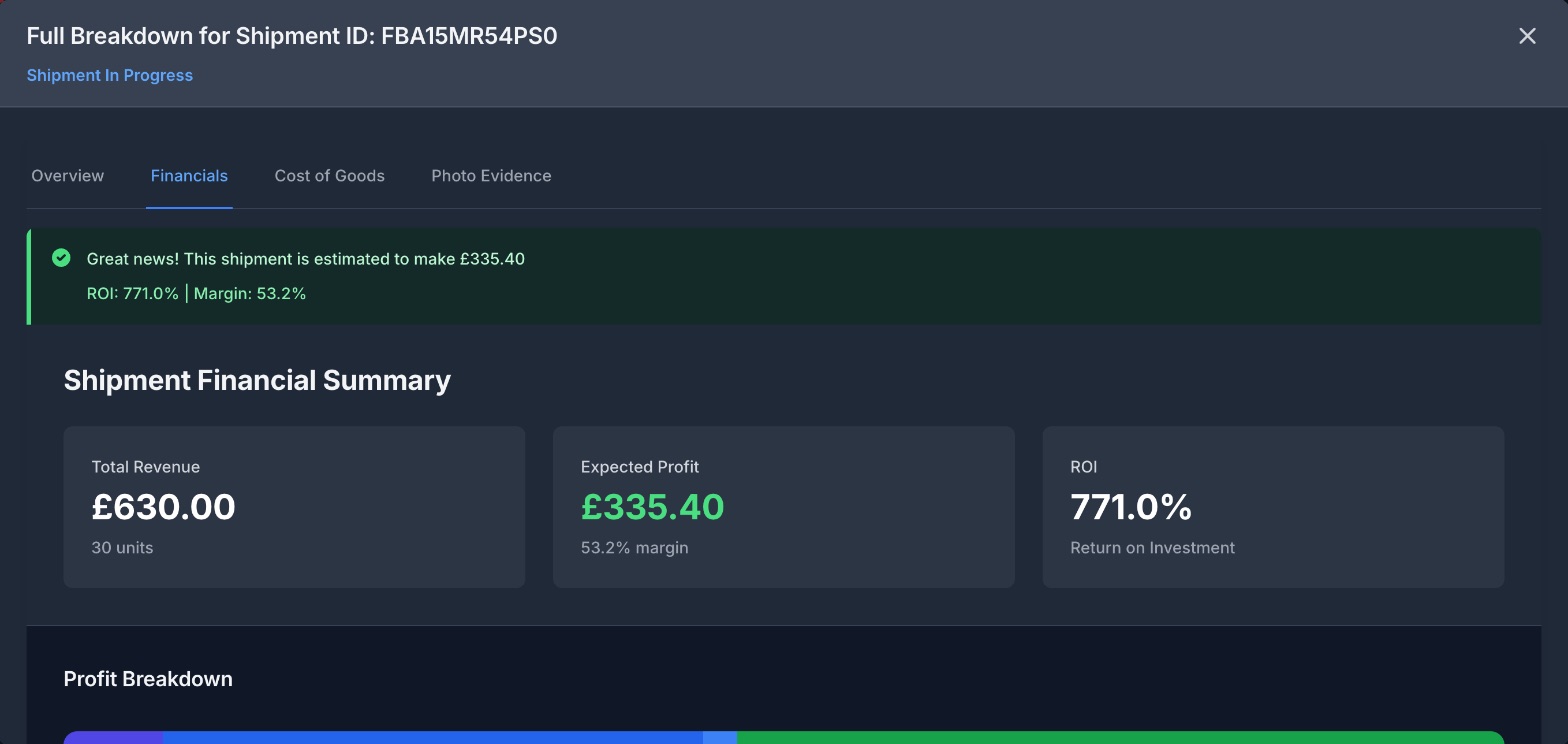
Click View to open Full Breakdown for Shipment ID. It has four tabs.
Overview
The Total Cost of Shipment, Shipment Progress as a percentage received, and Missing Units Status. Below is every product with its SKU, ASIN, Quantity Shipped, Quantity Received and how many units have been received so far.
Financials
The Shipment Financial Summary: Total Revenue, Expected Profit and ROI. The Profit Breakdown splits revenue into Cost of Goods, Amazon Fees + VAT, Other Costs and Net Profit. You also get the Amazon Fees Breakdown (FBA fee, referral fee, DSF fee and VAT adjustment), Additional Costs (prep and delivery) and the figures for each product.
Cost of Goods
Set the cost, prep, delivery and VAT per unit for each product on this shipment, then click Save changes. These feed your profit figures everywhere in SellerFuse. See how to add your cost of goods.
Photo Evidence
Photograph your boxes, contents and labels before a shipment leaves, so you have proof of what you sent. Click Add photos and pick JPG, PNG, GIF or WEBP files: up to 10 at a time, 10MB each, and 40 per shipment. You can add a label, such as "Box 1 of 3, sealed". These photos are useful evidence if you later need to claim for missing units.
Common questions
Why does a shipment I am still receiving not show missing units?
Units are only counted as missing once Amazon closes the shipment. Until then they may still be checked in.
Why is the estimated profit wrong?
It depends on your cost of goods. Open the shipment, go to Cost of Goods, and check each product has a cost.
What does CLOSING mean?
Every unit has been received, but Amazon has not marked the shipment closed yet.
Still stuck?
Members get priority live chat from inside SellerFuse, from our UK team. Not a member yet? Ask in our Discord community, which is open to everyone.