Help Centre / Dashboard
How to read Net P&L and the Monthly Breakdown in SellerFuse
Understand your Net P&L line by line, export it, and use the Monthly Breakdown to compare gross and net profit month by month and period by period.
Why sellers use it
- Your real bottom line after storage fees, subscriptions, expenses, write-offs and reimbursements.
- Gross and net profit on the same monthly bar, so you see what overheads take each month.
- Click any line to see what is behind it, then export the lot to Excel.
Profit on your orders is only half the story. Storage fees, your Amazon subscription, your own business expenses and written off stock all come out before you see a penny, and reimbursements put some back. Net P&L adds all of that up, so you know what the business actually made. The Monthly Breakdown then shows how that has moved month by month.
Where to find it
In the menu, open Amazon, then Dashboard. Net P&L is one of the six small cards near the top. Monthly Breakdown is the last card on the page.

1Open your Net P&L
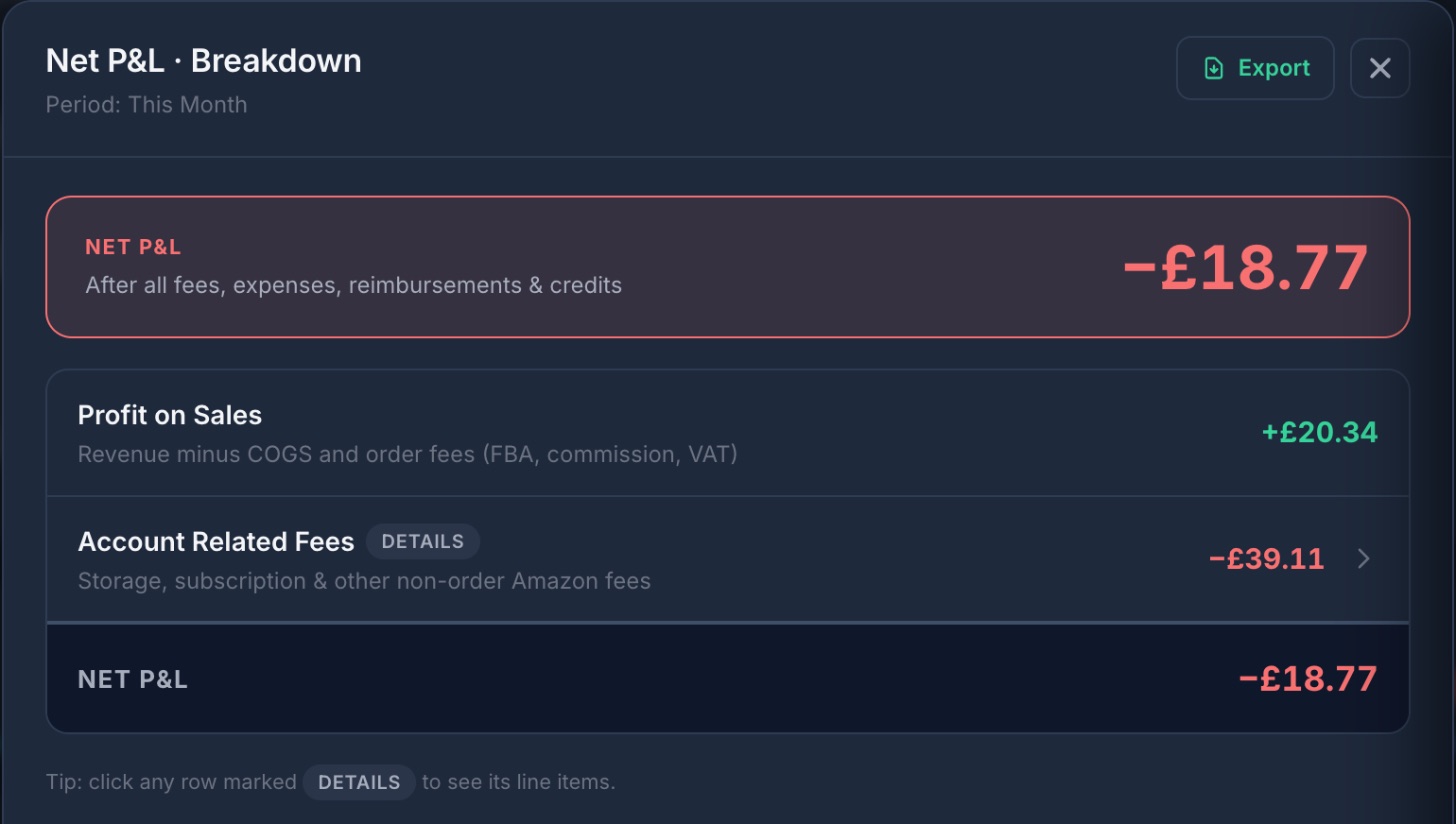
The Net P&L card shows the total for the period chosen in the date dropdown. Click the card to open the breakdown. The top of the window shows the period and your Net P&L, after all fees, expenses, reimbursements and credits.
2Read it line by line
Each line adds to or takes away from your total. Lines with nothing in them for the period are left out.
- Profit on Sales: your sales less cost of goods and the fees on each order (FBA, commission and VAT). This is the profit figure on the dashboard rings.
- Reimbursements: what Amazon paid for lost or damaged stock, less what that stock cost you.
- Prep Costs Excluded: estimated prep that was left out of sale profits, reconciled to your invoices.
- Account Related Credits: credits from Amazon, such as corrections and adjustments.
- Adjustments / Credits: income adjustments and expense credits.
- Account Related Fees: storage, subscription and other Amazon fees that are not tied to an order.
- Ad Spend: your Amazon Sponsored Products spend, shown only if you have chosen to include it (see below).
- Expenses: business expenses you have recorded in Finance Hub, My Expenses.
- Stock Write-Offs: stock lost to damage, expiry or loss.
3See the detail and export
Lines marked details open their individual entries: every credit, every account fee and every expense in the period. Click Export to download the breakdown to Excel for your accountant.
Include or leave out Amazon Ads
If Amazon takes your ad costs out of your payouts, they are already counted. If Amazon bills your ads to a card, open Settings, then Preferences, and under Profit & loss switch on Include Amazon Ads in Net P&L. Ad Spend then appears as its own line.
4Use the Monthly Breakdown
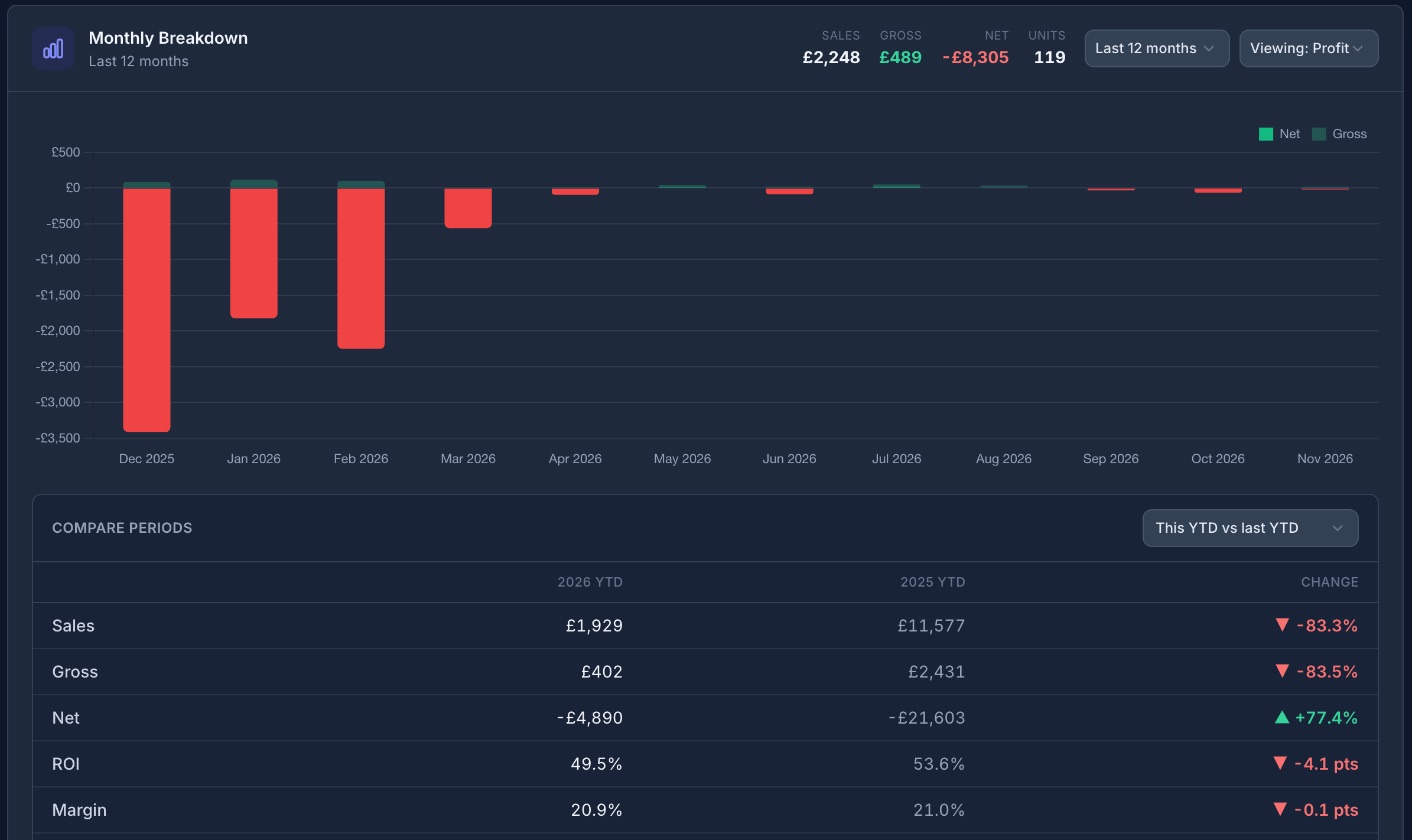
Across the top of the card are the totals for the range you pick: Sales, Gross, Net and Units. Gross is profit on sales. Net is the same figure as the Net P&L card.
- The first dropdown sets the range: Last 12 months, Last 24 months, This year, My Tax Year or All time.
- The second sets the chart: Viewing: Profit, Viewing: Sales, Viewing: Units or Viewing: ROI.
On Viewing: Profit, each month has one bar. The light part is gross profit and the solid part is Net. The gap between them is what fees, expenses and write-offs took that month. Hover over a bar to see both figures. A month with no Net figure yet shows n/a.
5Compare two periods
Under the chart, Compare periods puts two periods side by side. Pick This YTD vs last YTD, This month vs last month or Last 30 days vs previous 30. The table shows sales, gross, net, ROI, margin and units for each, with the change between them.
For more periods at once, use the Compare button at the top of the dashboard. See dashboard date ranges and Compare Periods.
Common questions
Why is my Net P&L lower than my profit?
Profit on sales covers each order. Net P&L also takes off storage and subscription fees, expenses and write-offs. That difference is your overheads.
Why are reimbursements less than Amazon paid me?
SellerFuse takes off what the reimbursed stock cost you, so the line shows what you gained or lost, not the payment.
Can my accountant have this?
Yes. Click Export in the Net P&L window to download it to Excel. For more on tracking profit, see the profit tracker.
Still stuck?
Members get priority live chat from inside SellerFuse, from our UK team. Not a member yet? Ask in our Discord community, which is open to everyone.