Help Centre / Dashboard
How to use dashboard date ranges and Compare Periods in SellerFuse
Change the dashboard period, step back a day at a time, use My Tax Year, compare periods side by side and download a shareable image of your figures.
Why sellers use it
- See any day, month, quarter or your own tax year in two clicks.
- Compare this month with the last three, like for like, with the full cost breakdown behind each.
- Download a clean image of your headline figures to share.
A single day's profit means little on its own. Was it better than yesterday? Is this month ahead of last month? The date controls on the SellerFuse dashboard let you look at any period, and Compare Periods puts several periods next to each other so you can see the trend without building a spreadsheet.
Where to find it
In the menu, open Amazon, then Dashboard. The controls are at the top right of the page. This guide covers the standard Dashboard layout.
1Pick a period
Open the date dropdown. It starts on Today. The options are:
- Today and Yesterday.
- Last 7 Days and Last 30 Days.
- This Month and Last Month.
- This Year: 1 January to today.
- Last Year: the whole of last calendar year.
- My Tax Year: from the start of your current tax year to today.
- All Time.
- Custom Date Range: two date boxes appear. Fill in Start and End and the dashboard updates.
The rings, the small cards, Top Selling Marketplaces and Your Top Selling Items all follow this period. Your Top Selling Items and the Daily Profit and Daily Sales charts also have their own dropdowns if you want them on a different period. On the charts, choose Use Global Filter to make them follow the main dropdown again.
Set your tax year
My Tax Year starts on 6 April unless you change it. To use a different date, open Settings, then About Your Business, and set the start day and month under Tax Year.
2Step through days
The left and right arrows next to the dropdown move the whole dashboard back or forward one day. The label between them shows Today, Yesterday or the date you are looking at. You cannot step past today.
3Compare periods
Click Compare. The Compare Periods window opens with a row of tabs:
| Tab | Periods shown |
|---|---|
| Days | Today, Yesterday, 2 days ago, 3 days ago |
| Trailing | Today, Yesterday, Last 7 days, Last 14 days, Last 30 days |
| Weeks | This week, Last week, 2 weeks ago, 3 weeks ago |
| Months | Month to date, Last month, 2 months ago, 3 months ago |
| Quarters | This quarter, Last quarter, 2 quarters ago, 3 quarters ago |
It opens on Months. Each card shows Sales, Profit on sales, Net profit where it is available, and ROI, margin and units.
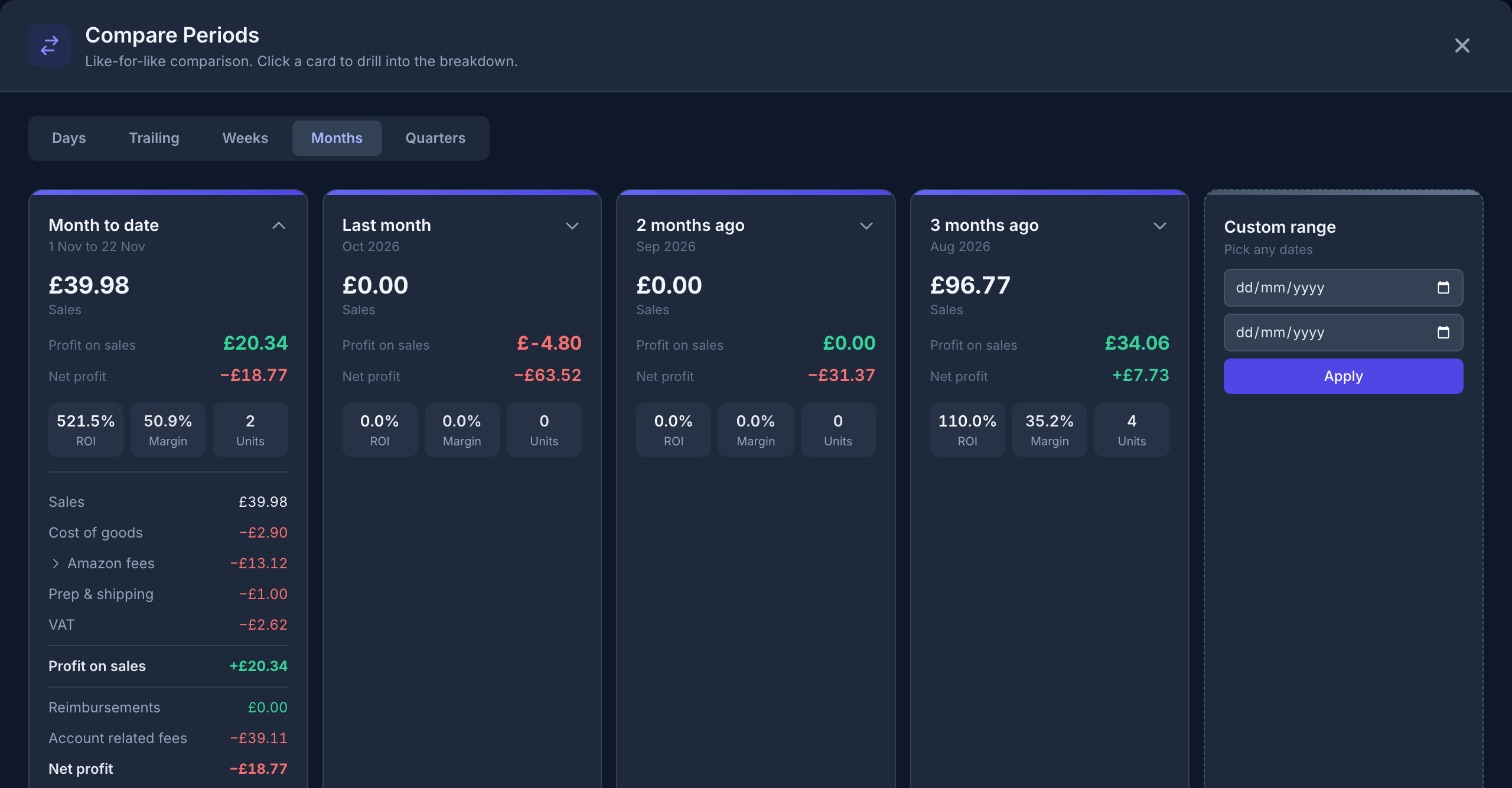
Click a card to open its breakdown: sales, cost of goods, VAT reclaimed on cost, Amazon fees (FBA, referral and digital services), VAT, prep and delivery, then profit on sales. If you run Amazon Ads it also shows your advertising cost, profit after ads and ACOS. Where Net profit is shown, the breakdown continues with reimbursements, account fees, expenses and write-offs.
The last card is Custom range. Pick any two dates and click Apply to add your own period alongside the others. Change dates lets you try another range.
4Share your figures
Click Share. SellerFuse downloads an image of your Total Sales, Profit on Sales, ROI and Total Orders for the period you have selected. It is sized for social media, so you can post it or send it on as it is.
Common questions
Why does the dashboard go back to Today?
The dashboard opens on Today, and it reloads itself when a new order comes in. Pick your period again after a reload.
Why is there no comparison percentage on My Tax Year?
My Tax Year and All Time have no earlier period of the same kind to compare with, so the rings show the figures without a comparison.
Does this work on the other layouts?
This guide covers the standard Dashboard layout. The other layouts have their own period controls, and the Build layout's are covered in how to build your own dashboard.
Still stuck?
Members get priority live chat from inside SellerFuse, from our UK team. Not a member yet? Ask in our Discord community, which is open to everyone.