Help Centre / Listings and sourcing
How to list up to 50 ASINs at once with Listing Builder Bulk Upload
Paste up to 50 ASINs into the Listing Builder, price them all from the Buy Box in one click and create every listing on Amazon in one go.
Why sellers use it
- List a whole delivery of new lines in one go instead of one ASIN at a time.
- Price every product from its own Buy Box with a single button.
- Copy every barcode in one click to match against your supplier invoice.
After a big buying trip, listing products one by one eats hours. Bulk Upload in the Listing Builder takes up to 50 ASINs at once, looks each one up on Amazon, and lets you set prices for all of them from their Buy Box before creating every listing in one run.
Where to find it
In the menu, open Amazon, then Listing Builder, and click Bulk Upload at the top right.
1Paste your ASINs
In the ASINs box, enter one ASIN per line. You can add your own SKU after a space on the same line, for example B0XXXXXXXX SF-12.50-231126. The counter under the box shows how many ASINs it found. You can add up to 50 per batch.
Click Search Products. SellerFuse looks up each ASIN on Amazon.
2Fill in each product
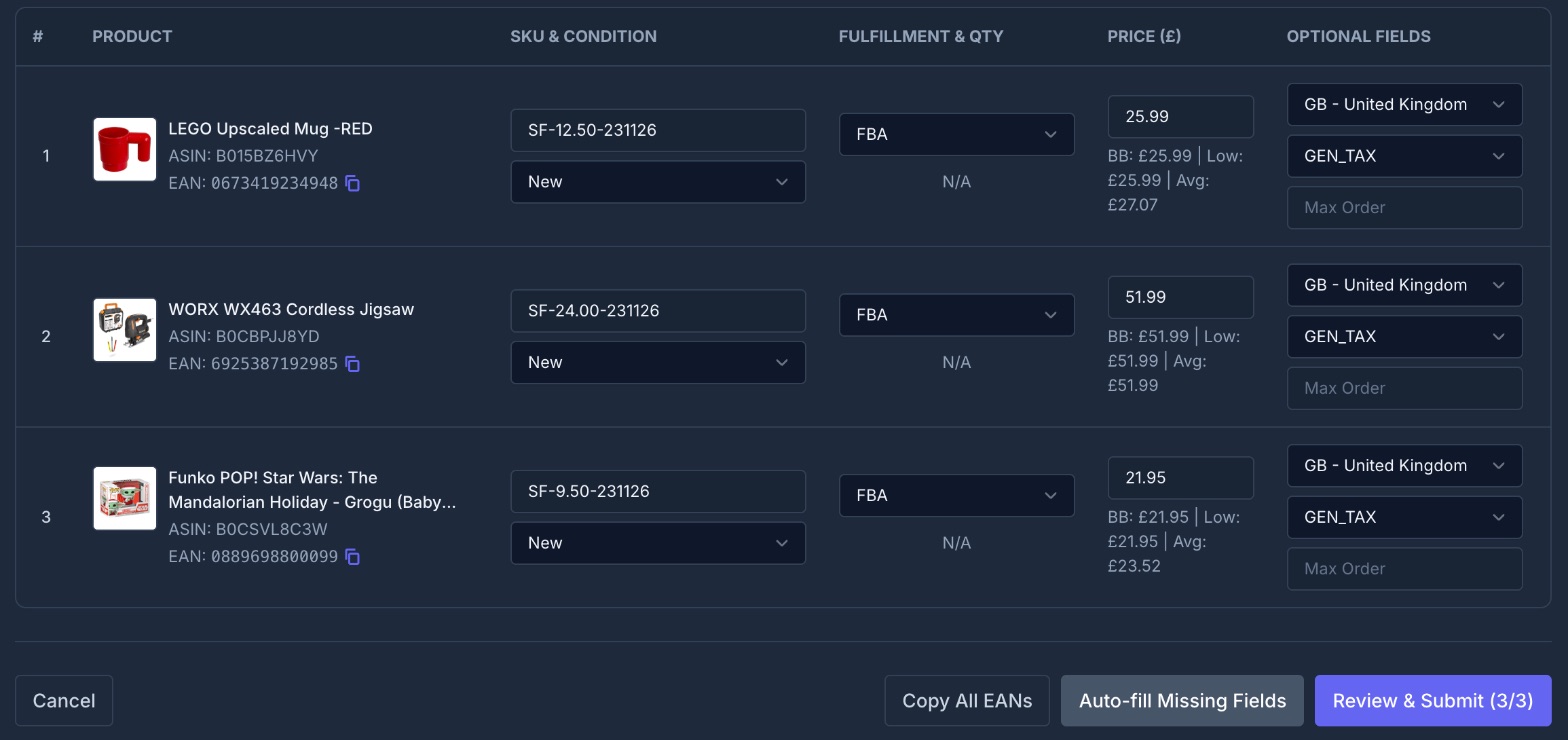
The Configure Your Listings table shows one row per product, with columns for SKU and condition, fulfilment and quantity, price, and optional fields. Each product starts as New, FBA, country of origin United Kingdom and the general tax code. Change any of these on the row.
3Price everything at once
Under Bulk Price All Products, click Match BB to set each product to its own Buy Box price, or BB + 10%, BB + 15% or BB + 20% to price above it. You can still change any single price on its row.
4Fill any gaps
Auto-fill Missing Fields fills anything left blank with placeholder values: the ASIN as the SKU, a price of £10.00, and a quantity of 1 for FBM rows. These are placeholders, not suggestions, so check every price before you submit.
Need the barcodes? Copy All EANs copies them for every product.
5Review and create
The Review & Submit button shows how many rows are complete out of the total. Click it to see a summary with your total, FBA and FBM listing counts and every row. Then click Create All Listings on Amazon.
SellerFuse creates the listings one by one and shows a tick or a cross with the reason for each SKU. When it finishes, Bulk Creation Complete shows how many succeeded and failed. Click Create More Listings to start another batch.
Common questions
Can I upload more than 50 ASINs?
Not in one batch. Split them into batches of 50 or fewer.
Can I set a repricing rule or EU stores in bulk?
The bulk table does not have the repricing rule, price guard or EU store fields. Use a single listing when you need those.
Some rows failed. What now?
The progress list shows Amazon's reason next to each failed SKU. Fix the issue and list those ASINs again, or check Listing History and filter by Failed.
Still stuck?
Members get priority live chat from inside SellerFuse, from our UK team. Not a member yet? Ask in our Discord community, which is open to everyone.