Help Centre / Cost of goods
How to add your cost of goods in SellerFuse
Enter what you paid for your stock, shipment by shipment, so every sale shows its real profit, ROI and margin.
Why sellers use it
- Every sale costed at what you paid for that batch, not an average.
- Prep, delivery and VAT rate on every line, so profit and ROI are real.
- Bulk edit prep and delivery across lots of lines in one go.
Profit, ROI and margin all depend on what you paid for your stock. SellerFuse keeps your costs against each inbound shipment, so every sale is costed at what you paid for that batch, not an average.
Where to find it
In the menu, open Amazon, then Cost of Goods. Each row is one product on one inbound shipment, with its status, how many units were received and when.
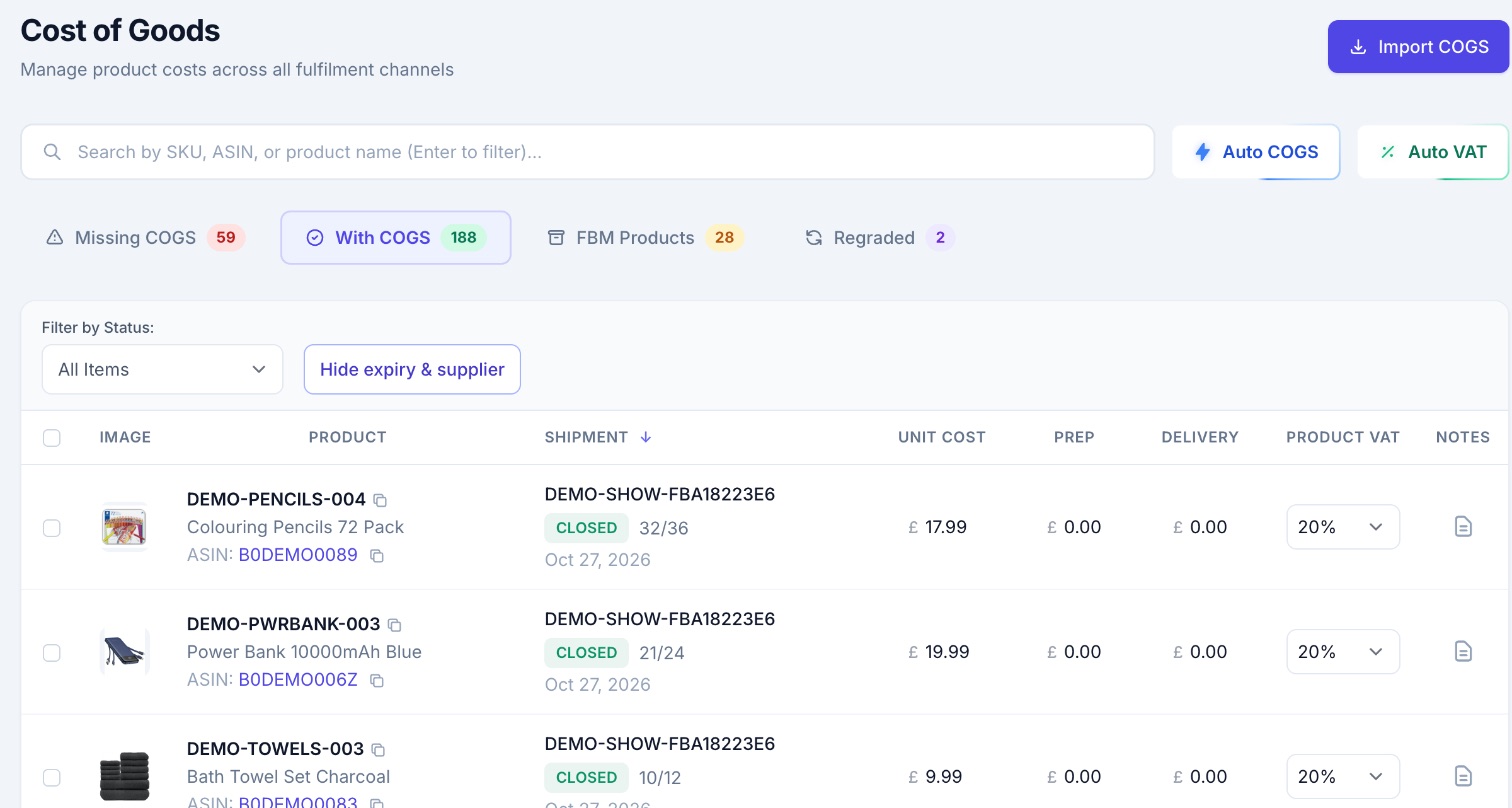
There are three tabs:
- Missing COGS: shipment lines with no cost yet. Start here.
- With COGS: lines you have already costed.
- FBM Products: products you ship yourself.
1Find the product
Use the search box to find a product by SKU, ASIN or name, and press Enter.
2Enter the costs
Fill in each line:
- Unit Cost: what you paid your supplier for one unit, including VAT.
- Prep: prep cost per unit, such as labelling and bagging.
- Delivery: what it cost per unit to get the stock to Amazon.
- Product VAT: the VAT rate on the product itself, 20%, 5% or 0%. This is not about whether you are VAT registered. Keep it at 20% unless you know the item is reduced or zero rated.
To set prep or delivery on lots of lines at once, tick the lines and use Apply Prep or Apply Delivery.
3Save
Click Save Changes. Your profit figures update with the new costs.
How SellerFuse uses your costs
Sales use your stock oldest first. Each sale takes the cost, prep and delivery of the next unit from the oldest shipment Amazon has received. When that shipment runs out, sales move on to the next one. An order that spans two shipments is costed at the average of the two.
Stock Amazon has not received yet is never used. If every shipment has been used up, sales are costed at the last shipment received, so a sale never shows £0 cost by mistake.
Save time on future shipments
- Fill in cost of goods automatically. Open Settings, then Preferences, and under Automations switch on Fill in cost of goods. When a new shipment syncs from Amazon, each item takes the cost, prep, delivery and VAT rate from your most recent entry for that SKU. Costs you have already set are never overwritten, and See changes shows every cost it filled in.
- Import a spreadsheet. Got your costs in a spreadsheet or another tool? Import them in one go.
Find products with no cost
- The Missing COGS tab in Cost of Goods.
- The Empty COGs Report in the Reports Hub, which you can download.
- A red No COG label in the Inventory Manager.
The repricer skips any listing with no cost of goods, because it can't protect your profit floor without one. See how to set up the repricer.
Common questions
Should I enter costs with or without VAT?
With VAT: the price you actually paid your supplier. If you are VAT registered, SellerFuse takes the VAT back out using the product's VAT rate and your VAT settings.
My supplier price changed. Do I need to update old shipments?
No. Each shipment keeps its own cost, so only enter the new price on the new shipment. Older sales stay costed at what you paid at the time.
Do I need to add costs for FBM products?
Yes. Use the FBM Products tab.
Still stuck?
Members get priority live chat from inside SellerFuse, from our UK team. Not a member yet? Ask in our Discord community, which is open to everyone.