Help Centre / Listings and sourcing
How to update your Amazon sourcing costs with SellerFuse
Fill Amazon's sourcing cost spreadsheet with your real cost of goods from SellerFuse, see where Amazon's estimate is lower, then upload it back.
Why sellers use it
- Replace Amazon's estimated cost with what you really paid, product by product.
- See every product where Amazon's estimate is below your cost, sorted by the gap.
- Fill a whole spreadsheet in seconds instead of typing costs line by line.
Amazon keeps an estimated cost for each product you sell through FBA, and lets you send it your own figure in Seller Central. If Amazon's estimate is lower than what you really paid, it undervalues your stock. Typing your costs into that spreadsheet by hand is slow. Sourcing Costs fills it in from the cost of goods you already keep in SellerFuse and shows you where Amazon's estimate is below your cost.
Where to find it
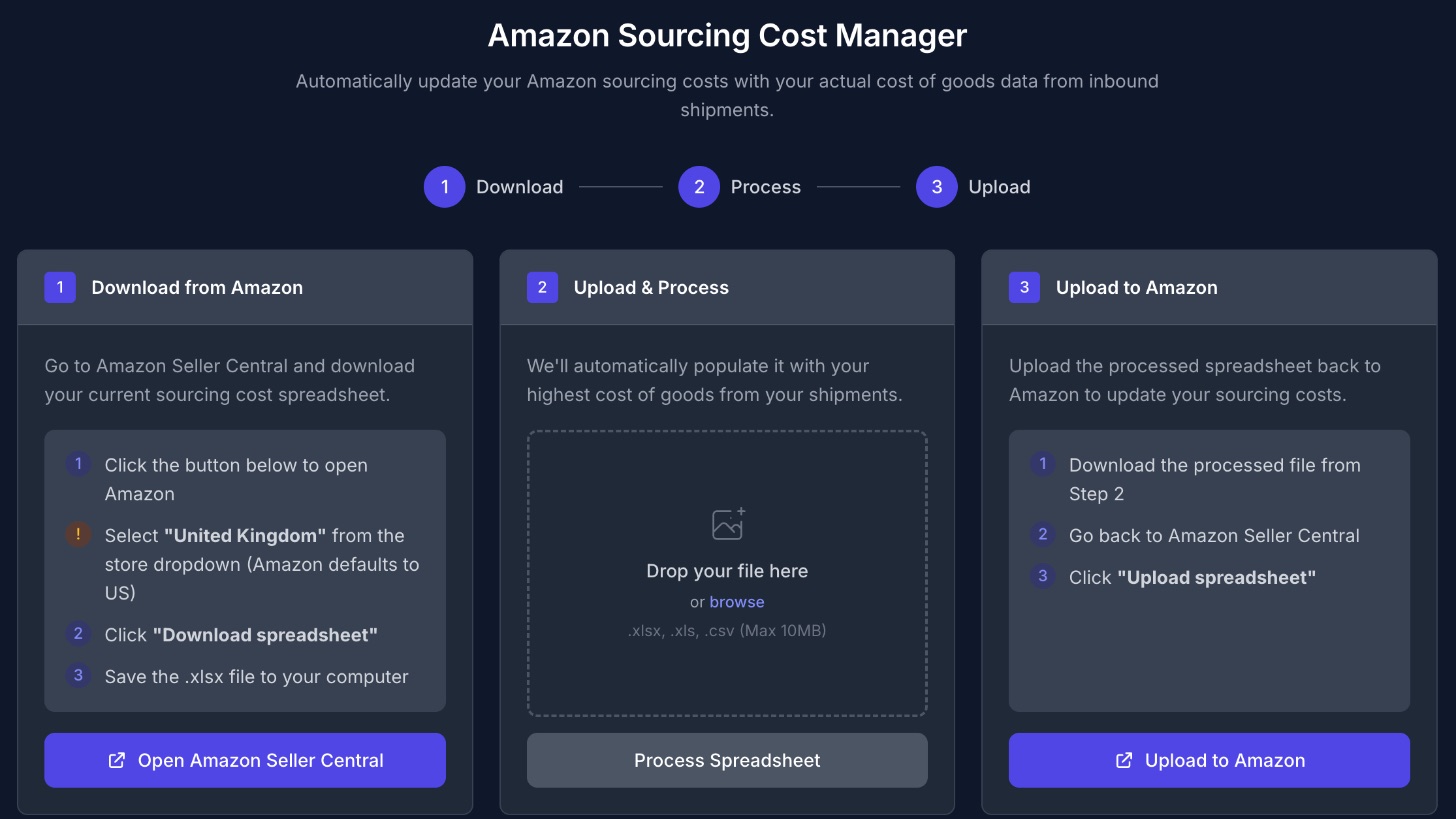
In the menu, open Amazon, then Sourcing Costs. The page is called Amazon Sourcing Cost Manager and has three steps: Download, Process and Upload.
Before you start
SellerFuse uses the costs you have entered against your inbound shipments. Products with no cost are skipped, so add your costs first. See how to add your cost of goods or import them from a spreadsheet.
1Download the spreadsheet from Amazon
- Click Open Amazon Seller Central.
- Select United Kingdom from the store dropdown. Amazon starts on the US store.
- Click Download spreadsheet and save the .xlsx file.
2Upload and process it
Drop the file onto the upload box, or click to browse. Excel (.xlsx, .xls) and CSV files up to 10MB are accepted. Click Process Spreadsheet.
SellerFuse matches each ASIN in the sheet with your shipments and writes your highest recorded cost of goods for that ASIN into the Seller New Cost column.
3Check the results
When processing finishes you see:
- Total Items, Updated and Skipped counts.
- Total Expected Savings Increase: how far your costs are above Amazon's estimates, added up across the products where yours is higher.
- Updated Items: each of those products with Amazon's estimate, your cost and the increase, sorted by highest increase.
Click Download & Continue to Step 3 to save the updated spreadsheet.
4Upload it to Amazon
- Click Upload to Amazon to go back to Seller Central.
- Click Upload spreadsheet and choose the file you downloaded.
Common questions
Which cost does SellerFuse use if I paid different prices?
The highest unit cost of goods you have recorded for that ASIN across your shipments.
Why were some products skipped?
They have no cost of goods in your inbound shipments. Add costs for them and process the sheet again.
Which columns does the sheet need?
An ASIN column and a Seller New Cost column. Amazon's downloaded sheet already has both.
Still stuck?
Members get priority live chat from inside SellerFuse, from our UK team. Not a member yet? Ask in our Discord community, which is open to everyone.