Help Centre / Repricer
How Optimise mode and Profit Boost earn you more on every sale
Learn how Optimise finds a selling price when you are the only seller, and how Profit Boost tracks the extra profit Intelligent Pricing keeps for you.
Why sellers use it
- When you are the only seller, Optimise lowers the price until it sells, then nudges it back up.
- Profit Boost shows the extra profit made by not matching sellers who cannot ship yet.
- Both stay above your rule's floor, worked out from your real cost of goods.
Two of the most common ways sellers lose money on Amazon are pricing too high when nobody else is selling, and dropping the price further than you need to. Optimise mode deals with the first: it tests your price against real sales. Intelligent Pricing deals with the second, and Profit Boost shows how much extra profit it kept for you.
Part 1: Optimise mode
What it does
Optimise is one of the choices under Only seller in a repricing rule. It decides your price when nobody else is selling the item, or everyone left is a seller your rule ignores.
If the item does not sell for a set time, Optimise lowers the price by a small step. While it is selling, it nudges the price back up. If a price rise stops the sales, it goes back to the last price that sold and stops climbing past the price that stalled. It never goes below your rule's floor, and if the listing has a Price Guard with a Max Price, it never goes above that.
Where to find it
In the menu, open Repricer, then Repricing Rules. Click New rule, or open a rule and click Edit rule.
1Choose Optimise
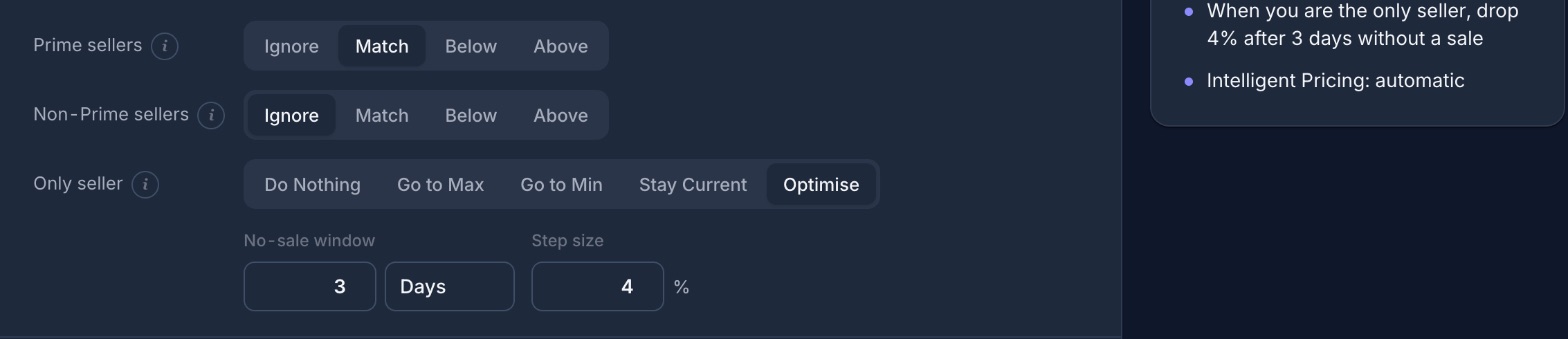
Under Only seller, choose Optimise. Two more boxes appear.
2Set the No-sale window
The No-sale window is how long Optimise waits without a sale before it lowers the price. Enter a number and choose Minutes, Hours or Days. New rules start at 3 days. A brand new listing gets its first full window before any price drop.
3Set the Step size
The Step size is how big each move is, as a percentage of the price. It can be from 0.5% to 50%. New rules start at 4%. A smaller step moves more slowly but gives up less margin on each move.
4Save and check the summary
Click Save rule. On the Rules page, the This rule will panel shows the setting in plain words, for example "drop 4% after 3 days without a sale".
Things to know
- Optimise needs a cost of goods on the listing. With no cost it holds the price rather than guess. See add your cost of goods.
- As soon as a competitor who can ship appears, your normal Prime and Non-Prime settings take over again.
- Each price is given a fair test before the next move. The repricer checks every 10 minutes, but Optimise only moves once the window has passed.
Part 2: Profit Boost
What it is
With Intelligent Pricing on Automatic, the repricer checks other sellers' stock to maximise your chance of selling at a higher profit. When it keeps your price higher than it would otherwise be, SellerFuse records a Profit Boost: the difference is the extra profit on each unit.
SellerFuse also counts it when your rule is set to ignore non-Prime sellers, you sell through FBA, and a cheaper non-Prime seller is on the listing.
You don't switch Profit Boost on. It is a record of what your rules already do.
Where to see it
- On the Repricing Hub, Active Profit Boost shows how many ASINs have a boost running now and the extra profit per unit.
- Profit Boost Events lists each product with its Profit Saved per unit, whether it is Protecting or Ended, and when it started. Use the All Events, Active and Past filter to narrow the list.
- Profit Boost Savings lists the orders that sold while a boost was running, with the extra profit per unit and in total. Filter by All Time, Today, This Week or This Month. The cards at the top show Extra Profit Secured, Orders and Avg Per Order.
- On Repricer Listings, a listing with a boost running shows a Profit Boosting badge. Hover over it to see the price being ignored and the price you are competing at.
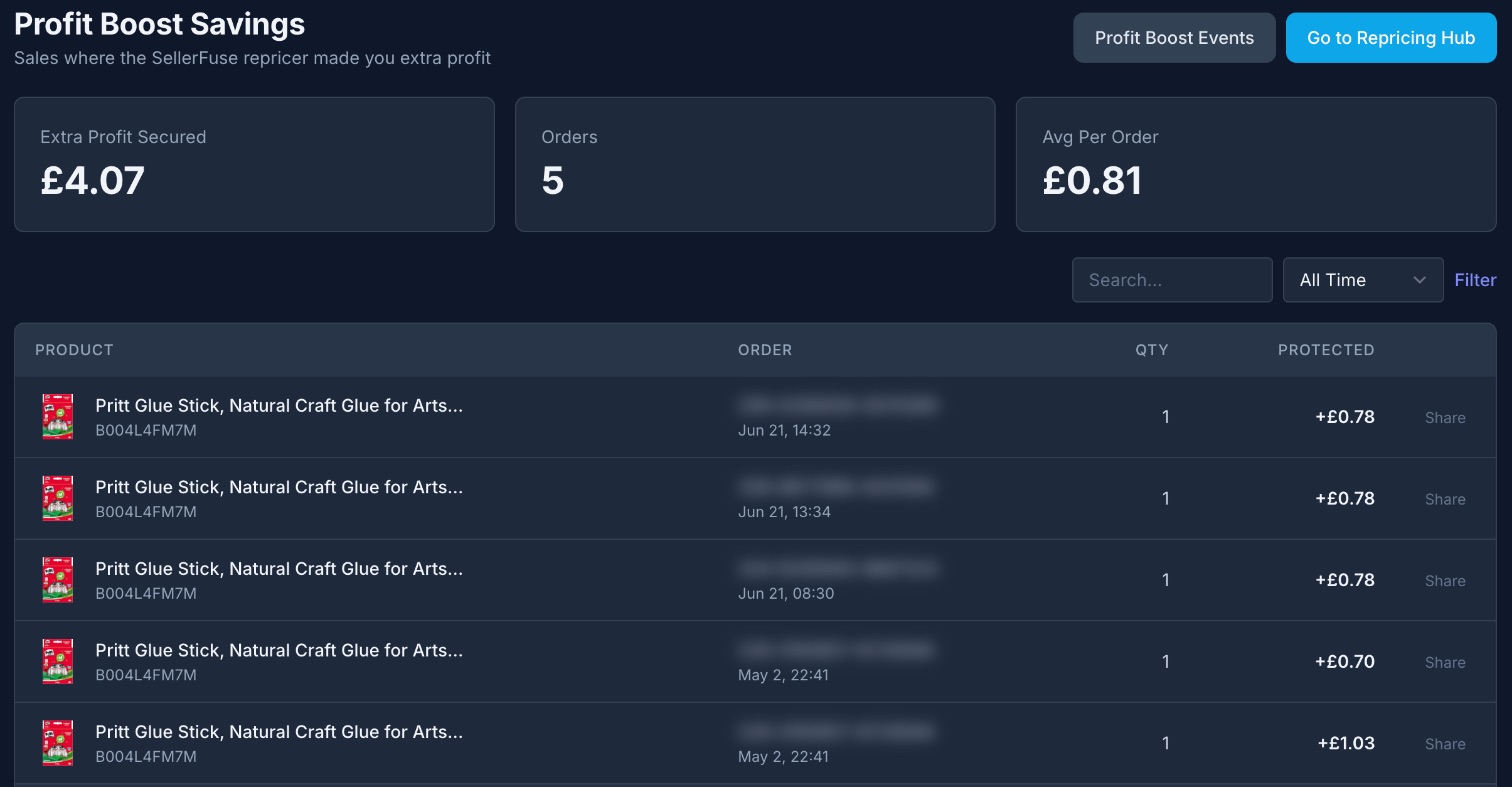
On Profit Boost Savings, the Share button on an order makes an image of the sale, with the competitor's price, the price you sold at and the extra profit, which you can download.
Common questions
Will Optimise drop my price to nothing if an item never sells?
No. It stops at your rule's floor, which is worked out from your cost of goods, Amazon's fees and VAT.
Does Optimise run when other sellers are on the listing?
Only when nobody else can be competed with. Once another seller who can ship is on the listing, your Prime and Non-Prime settings decide the price.
Why is my Profit Boost Savings total zero?
It only counts orders placed while a boost was running. If Intelligent Pricing has not needed to step in on any of your listings yet, there is nothing to count.
Still stuck?
Members get priority live chat from inside SellerFuse, from our UK team. Not a member yet? Ask in our Discord community, which is open to everyone.