Help Centre / Listings and sourcing
How to automate Amazon review requests with the Feedback Tool
Switch on automatic Amazon review requests in SellerFuse, see what has been sent and keep an eye on negative seller feedback from one page.
Why sellers use it
- Ask every eligible customer for a review automatically, without clicking through orders.
- Never ask the same order twice: each order gets one request.
- See negative and neutral feedback on the same page so you can act fast.
More reviews help a listing sell, but pressing the review request button on every order in Seller Central takes time nobody has. The Feedback Tool sends Amazon's own review request for every eligible order for you, once per order. The same page tracks your negative and neutral seller feedback, so problems don't go unnoticed.
Where to find it
In the menu, open Amazon, then Feedback Tool. The page is called Review Requests.
How review requests work
SellerFuse uses Amazon's official review request, the same one as the button in Seller Central. The customer gets an email from Amazon, not from your seller account, asking for a product review and seller feedback. You can't write your own message, which keeps you inside Amazon's rules. Only shipped orders in the eligible window qualify, and each order can be asked once.
Click How it works on the page for Amazon's process in full.
1Switch on automatic requests
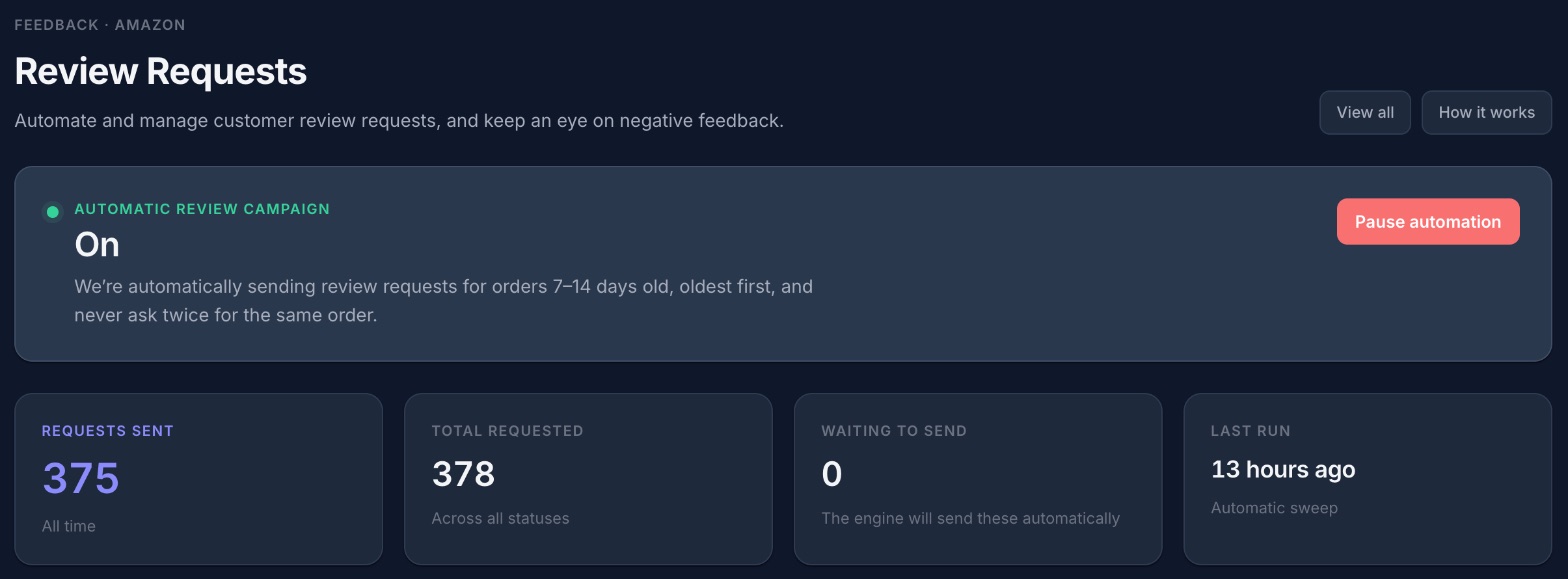
The Automatic review campaign card shows whether automation is On or Paused. It starts paused. Click Enable automation to switch it on.
Once it is on, SellerFuse sends a request for each eligible order between 7 and 14 days old, oldest first, and never asks twice for the same order. The automatic sweep runs once a day.
2Watch the numbers
The cards on the page show:
- Requests sent: all time.
- Total requested: across every status.
- Waiting to send: eligible orders the next sweep will send.
- Last run: when the sweep last ran.
3See every request
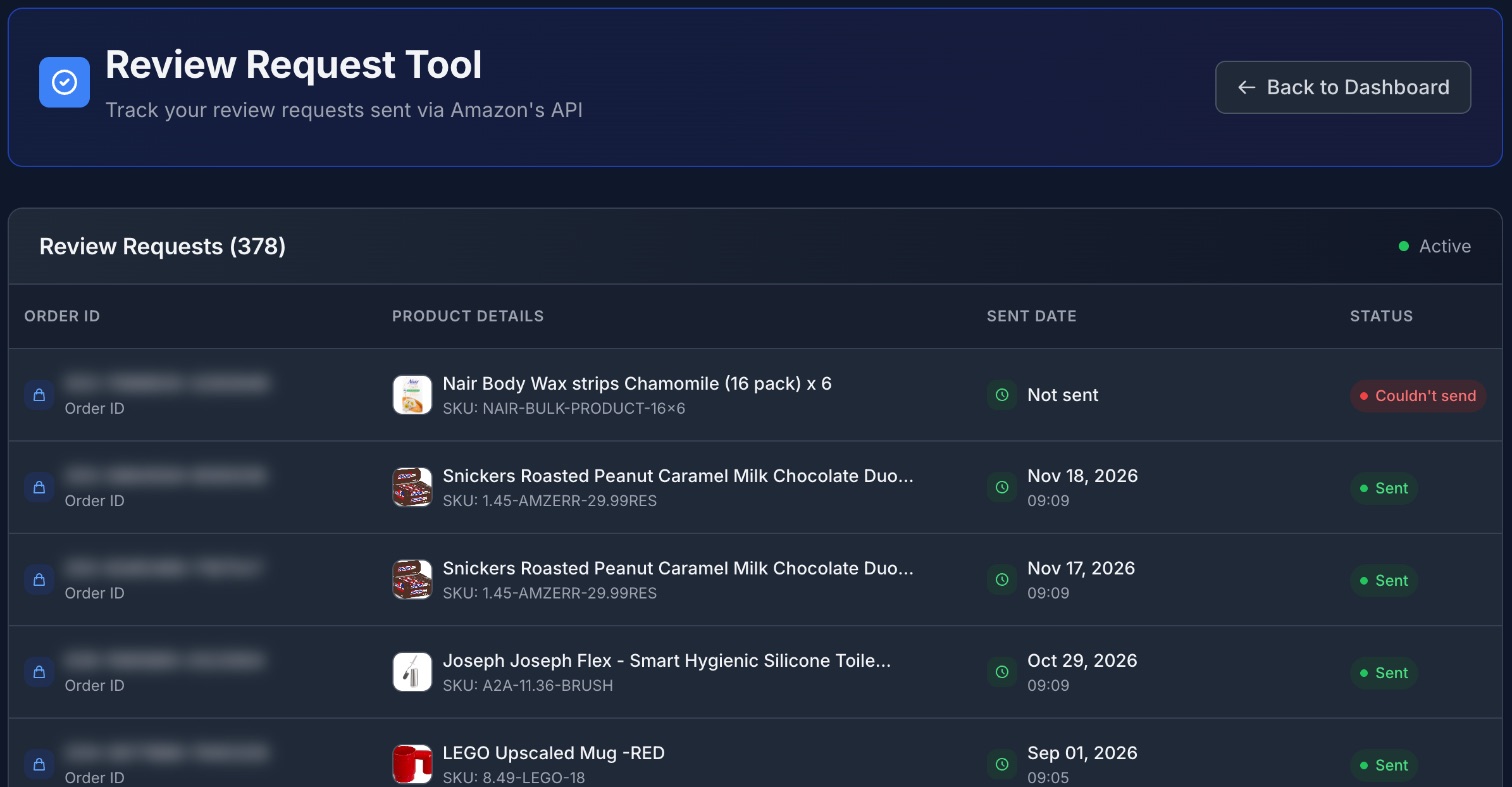
Click View all to open the Review Request Tool. It lists each request with the order ID, product and SKU, the date it was sent and its status.
Check a request in Seller Central
- Open the order in Seller Central.
- Click Request a Review.
- If Amazon says you have already requested a review, the request went through.
Keep an eye on negative feedback
The Negative feedback tracker on the same page shows your total feedback, negative (1 to 2 stars), neutral (3 stars) and how many arrived in the last 30 days, with your latest problem feedback listed below. See how to track and remove negative feedback.
Common questions
Can I pause the requests?
Yes. Click Pause automation and no more requests are sent until you switch it back on.
Will a customer get two requests?
No. SellerFuse never asks twice for the same order, and Amazon only allows one request per order.
Can I write my own message to the customer?
No. Amazon's review request uses Amazon's own wording, so there is nothing to write.
Still stuck?
Members get priority live chat from inside SellerFuse, from our UK team. Not a member yet? Ask in our Discord community, which is open to everyone.