Help Centre / Reimbursements and shipments
How to track and follow up your Amazon claims in My cases
Keep every Amazon claim in one list, update its status, match Amazon's payment and send a follow up when Amazon goes quiet.
Why sellers use it
- See every claim you have filed with Amazon and what has been paid so far.
- Send a ready written follow up when Amazon has not replied.
- SellerFuse spots Amazon's payment and suggests which case it settles.
Filing a claim is only half the job. Amazon can take days to reply, pay part of what you asked for, or turn a claim down. My cases keeps every claim from the Appeals Hub in one place, with its status, what Amazon paid and the message you sent, so you can chase the ones that stall.
Where to find it
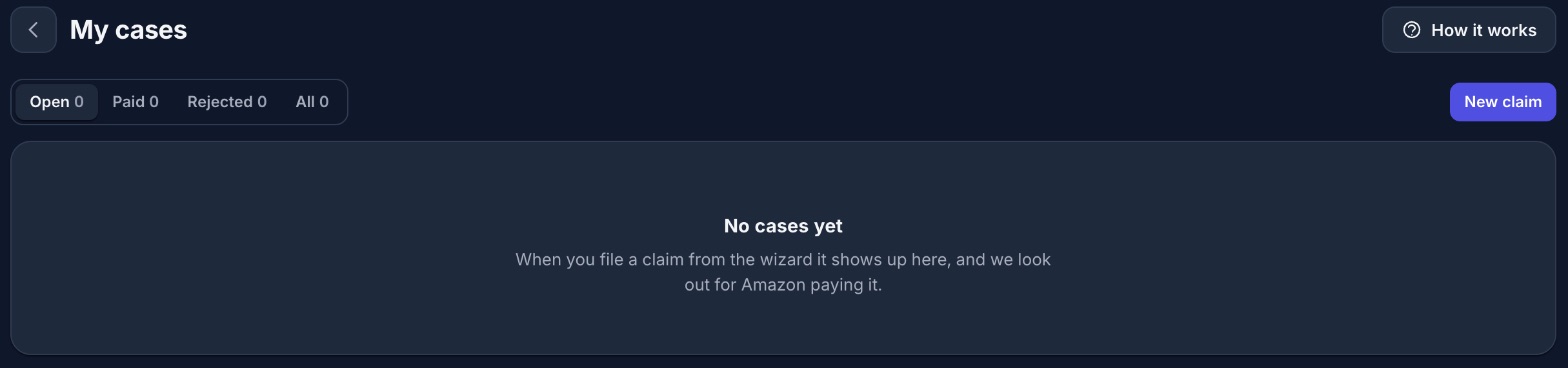
In the menu, open Amazon, then Appeals Hub, and click My cases in the top corner. The number next to it is how many cases are still open. You can also click Follow up a case on the Appeals Hub home page.
1Filter your cases
Use the filters at the top of the list: Open, Paid, Rejected or All. Each case shows what you claimed, what has been paid, and when it was filed.
2Open a case
Click a case to open it. Inside you see:
- Status: Filed, Amazon replied, Paid, Part paid, Rejected or Closed.
- Amount Amazon paid.
- Amazon case ID, which you can add or change at any time.
- The items in the claim.
- What you sent: the exact message you filed, with a Copy button.
- History: every change to the case.
3Update the status as Amazon replies
Change the Status when Amazon replies, pays or turns the claim down. If Amazon paid, enter the Amount Amazon paid. Choose Part paid if it paid less than you claimed.
4Match Amazon's payment
When a reimbursement arrives that looks like it belongs to an open case, SellerFuse suggests it on the case. Click It's this case to record the payment against it. Adding the Amazon case ID when you save makes this matching more reliable.
5Follow up if Amazon goes quiet
Under Follow up, pick a ready written message:
- No reply yet: a polite chase for a case Amazon has not answered.
- Ask for a second review: for a claim Amazon turned down. You fill in What is new since your first message?, because Amazon turns down repeat requests that add nothing new.
Copy the follow up and use Reply in the same case in Seller Central, so Amazon sees it with the original claim.
Delete a case
Saved a case by mistake? Click Delete this case. You can press Undo straight after if you change your mind.
New to the hub? Start with how to build and file a claim.
Common questions
Why does a case have no message?
You marked it as Already claimed because you opened it in Seller Central yourself, so there is no SellerFuse message saved.
Does changing the status here change anything at Amazon?
No. My cases is your own record. Amazon only sees what you file in Seller Central.
Amazon paid only part of my claim. What should I do?
Set the status to Part paid and enter the amount. If you think more is owed, use Ask for a second review and say what is new.
Still stuck?
Members get priority live chat from inside SellerFuse, from our UK team. Not a member yet? Ask in our Discord community, which is open to everyone.