Help Centre / Orders and SKU analysis
How to add a sale made outside Amazon to your SellerFuse figures
Record stock you sold away from Amazon, such as a bulk sale or a clearance, so your profit and dashboard stay right without touching your Amazon costs.
Why sellers use it
- Sold a pallet to a trader or cleared stock elsewhere? Your profit figures include it.
- See the profit, ROI and margin before you save.
- Your Amazon stock and cost of goods are left exactly as they were.
Not every sale goes through Amazon. You might sell a batch to a wholesaler, or clear stock elsewhere after losing access to a brand. If those sales are missing, your profit is understated. Add a sale made outside Amazon records them in SellerFuse, kept apart from your Amazon stock and costs.
Where to find it
In the menu, open Amazon, then Your Orders, and click Actions.

1Open the form
Under Add a sale made outside Amazon, click Add a sale.
2Enter the sale
- What did you sell?: a short description, such as 200 phone cases sold to a wholesaler
- Date of sale: today or earlier
- Units sold
- Total sale price: for the whole sale, including any postage they paid
- Total cost of goods: for the whole sale, not per unit
Optional fields: Prep costs, Postage you paid, Other fees (such as eBay or PayPal), VAT on the sale, VAT you can reclaim on the cost, and Notes, which only you see.
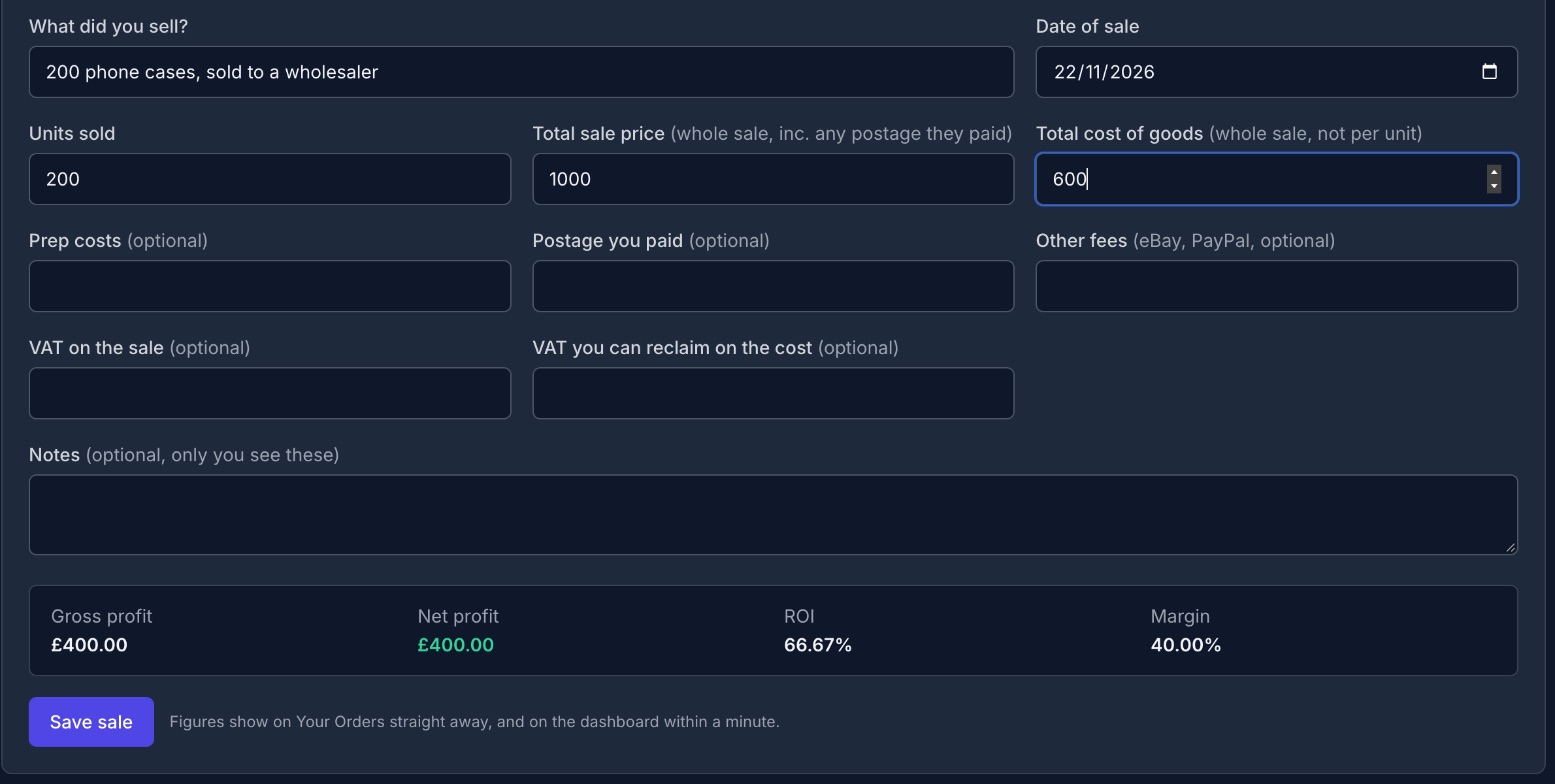
3Check the preview and save
As you type, the form shows Gross profit, Net profit, ROI and Margin. These use the same sums as the order on Your Orders. Click Save sale. It shows on Your Orders straight away, and on the dashboard within a minute.
How the figures are worked out
- Gross profit: sale price, less other fees, cost of goods, prep and postage
- Net profit: gross profit, less the VAT on the sale, plus the VAT you can reclaim on the cost
- ROI: net profit as a share of your costs
- Margin: net profit as a share of the sale price
Find, check or remove a manual sale
Your saved sales are listed under Your manual sales in the Actions panel, with a reference, date, description, units, sale and cost. To find them among your orders, choose Manual Sale in the status menu. They show a Manual sale label.
To delete one, click Remove, then Click again to remove.
Common questions
Does a manual sale take units out of my Amazon stock?
No. Manual sales are kept separate, so your Amazon stock and cost of goods are not changed.
Should I enter the cost per unit?
No. Enter the total cost of goods for the whole sale.
I made a mistake in a sale. Can I edit it?
Remove it and add it again with the right figures.
Still stuck?
Members get priority live chat from inside SellerFuse, from our UK team. Not a member yet? Ask in our Discord community, which is open to everyone.