Help Centre / Inventory
How to manage a single product in SellerFuse
Open the Manage panel for any listing to see its stock, sales and profit, edit cost of goods per shipment, check competitors, print FNSKU labels and more.
Why sellers use it
- Everything about one product in one place: stock, sales, profit, competitors and price history.
- Edit the cost of goods for each shipment of a product without leaving the page.
- Print FNSKU labels and set a maximum order quantity in a couple of clicks.
When one product needs attention, you want every fact about it in front of you, not spread over five Seller Central pages. The Manage panel in the Inventory Manager brings it all together: stock and inbound units, sales and profit for any period, a fee calculator, your costs for each shipment, the competition and the tools to act on it.
Where to find it
In the menu, open Amazon, then Inventory Manager. Click Manage on any listing. The Manage panel opens with the product's image, title, ASIN and SKU at the top, and six tabs underneath.
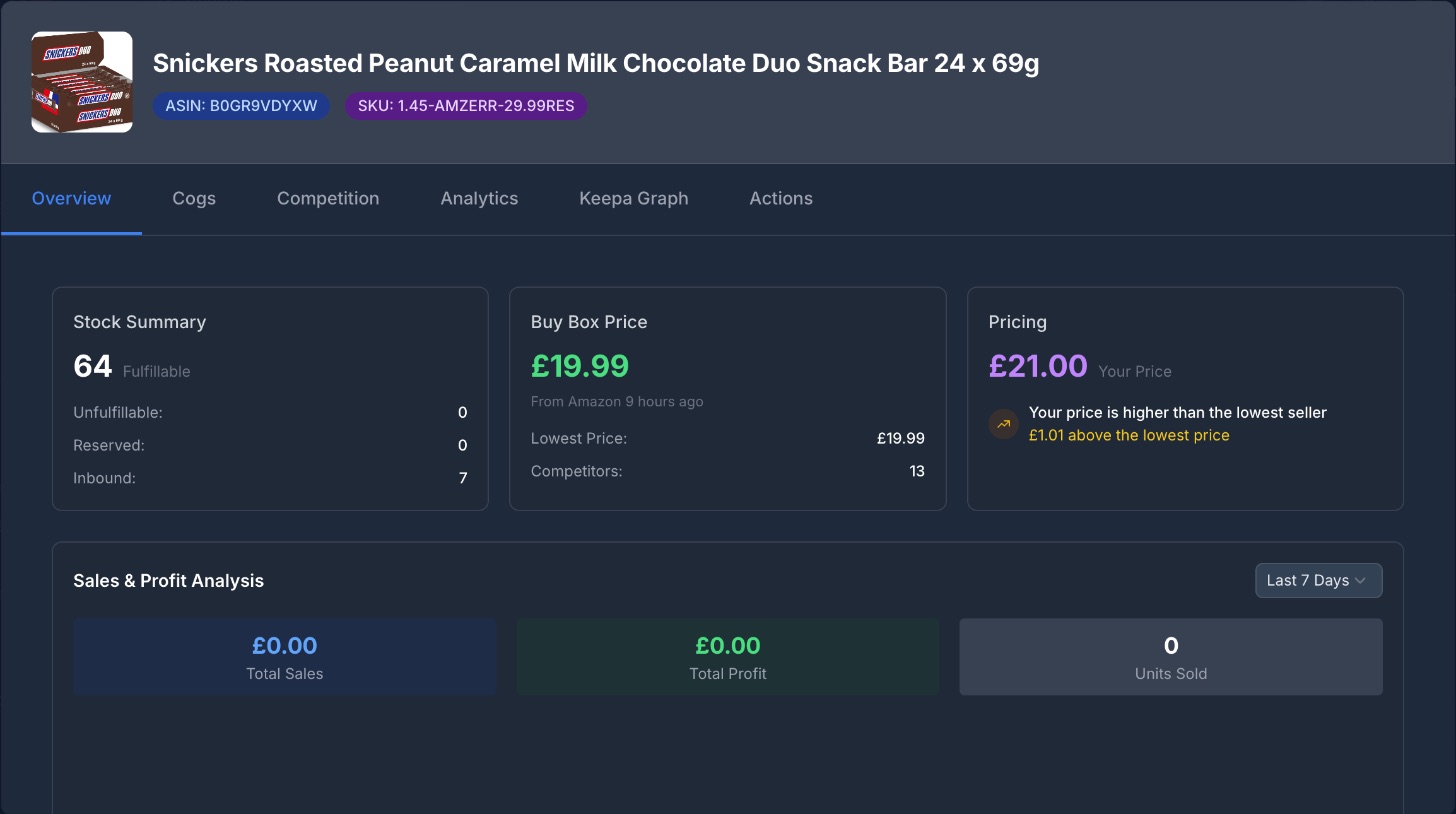
Overview
- Stock Summary: fulfillable, unfulfillable, reserved and inbound units.
- Buy Box Price, the lowest price and how many competitors there are.
- Pricing: your price and where it sits against the lowest seller.
- Sales & Profit Analysis: Total Sales, Total Profit and Units Sold with a chart. Switch between Today, Yesterday, Last 7 Days, This Month, Last Month, All Time and Custom Range.
- Financial Breakdown: sales, cost of goods, fees, VAT, shipping, profit, ROI and margin for the same period.
- Fee Calculator: enter a Selling Price and Purchase Cost to see the referral, FBA and digital services fees, VAT, profit, ROI and margin at that price. Use it before you change a price.
- Inbound Shipments (receiving, working, shipped) and Reserved Inventory (customer orders and FC processing).
Cogs
This tab lists the product's Active Shipments, each with its quantity sent and received. For each shipment you can enter the Cost of Goods, Prep Costs, Delivery Costs and Expiry Date, then click Save Changes.
To set the same figures on every active shipment, click Show Bulk Actions, fill in the boxes and click Apply to All Active Shipments, then save. Cancelled or inactive shipments are tucked away in their own section. For products you ship yourself there is an FBM Costs section.
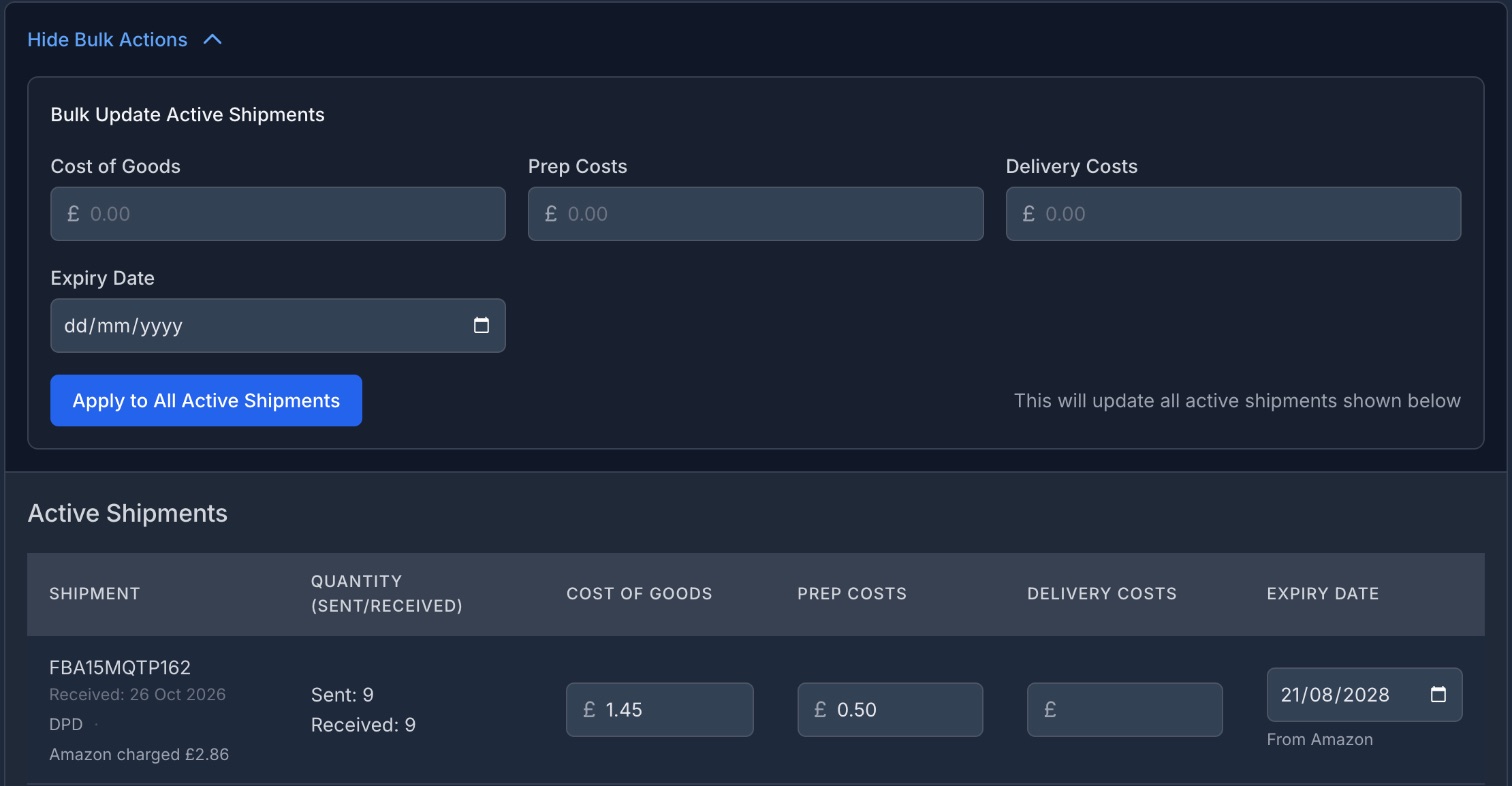
Each shipment keeps its own cost, so sales are costed at what you paid for that batch. See how to add your cost of goods to cost many products at once.
Competition
Competition Analysis shows how many sellers are on the listing (Competition Watch), Your Price Position (whether you have the lowest price, are competitive or are higher than the lowest seller) and a Price Comparison of your price against the lowest and highest.
Analytics
Performance Analytics covers your price, the competition and Sales Data & Information: units sold over the last 7, 30 and 90 days, days of supply, sales rank, sell through rate and the estimated storage cost for next month. Where Amazon gives one, it also shows a recommended price and recommended action. Stock By Age shows how long your units have been in stock.
Keepa
Keepa Price History charts the product's price and sales rank over time, so you can see whether today's price is high or low for it before you change yours.
Actions
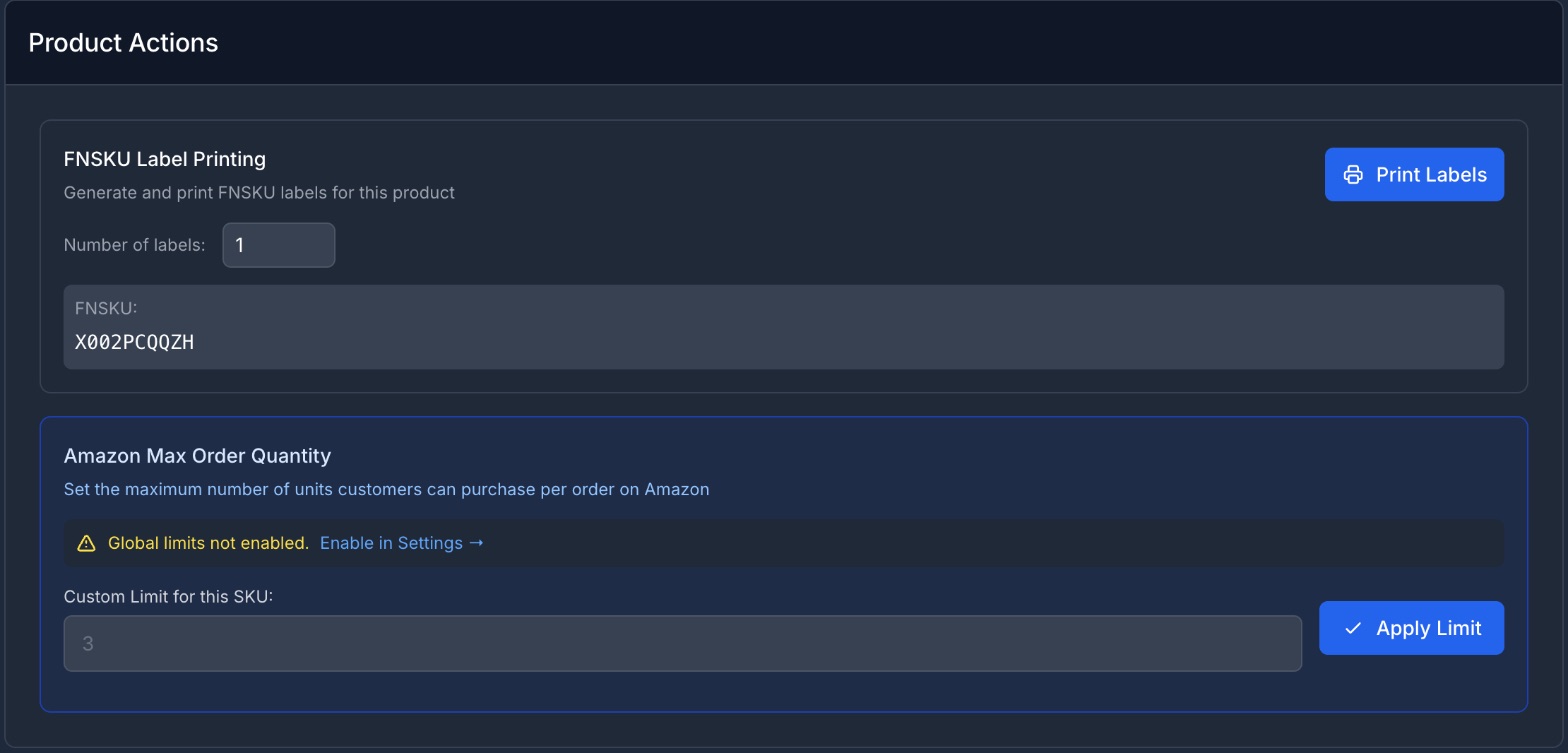
- FNSKU Label Printing: enter the Number of labels and click Print Labels.
- Amazon Max Order Quantity: set the most units a customer can buy in one order. Enter a Custom Limit for this SKU and click Apply Limit. If you have a default limit for your account, it shows here, and a custom limit overrides it for this SKU only.
Closing the Manage panel
Click Close, click outside the panel or press Escape. To change the price, repricing rule or price guard, use Edit pricing on the listing. See how to use the Inventory Manager.
Common questions
Do I have to fill in every shipment's cost here?
No. This is handy for one product. For many products at once, use Cost of Goods or import your costs from a spreadsheet.
Why are there no competitors listed?
Amazon has not sent offer data for the listing, or you are the only seller on it.
Does the Fee Calculator change my price?
No. It shows what you would make at the price you type in. It does not change your price on Amazon or your cost of goods.
Still stuck?
Members get priority live chat from inside SellerFuse, from our UK team. Not a member yet? Ask in our Discord community, which is open to everyone.