Help Centre / Inventory
How to use the SellerFuse Inventory Manager to run your stock
A full guide to the Inventory Manager: stock, sales, Buy Box, profit and stock age for every listing, plus changing prices, rules and price guards.
Why sellers use it
- Stock, 30 day sales, Buy Box, profit per unit and stock age for every listing on one screen.
- Change a price, repricing rule or price guard without leaving the page.
- Find the listings losing money, sitting unsold or off the Buy Box in two clicks.
Seller Central spreads the facts about a product across a dozen pages: stock in one place, sales in another, the Buy Box somewhere else, and profit nowhere. The SellerFuse Inventory Manager puts them together for every listing, so you can see what needs a price change, what needs restocking and what is costing you money, and act on it from the same screen.
Where to find it
In the menu, open Amazon, then Inventory Manager.
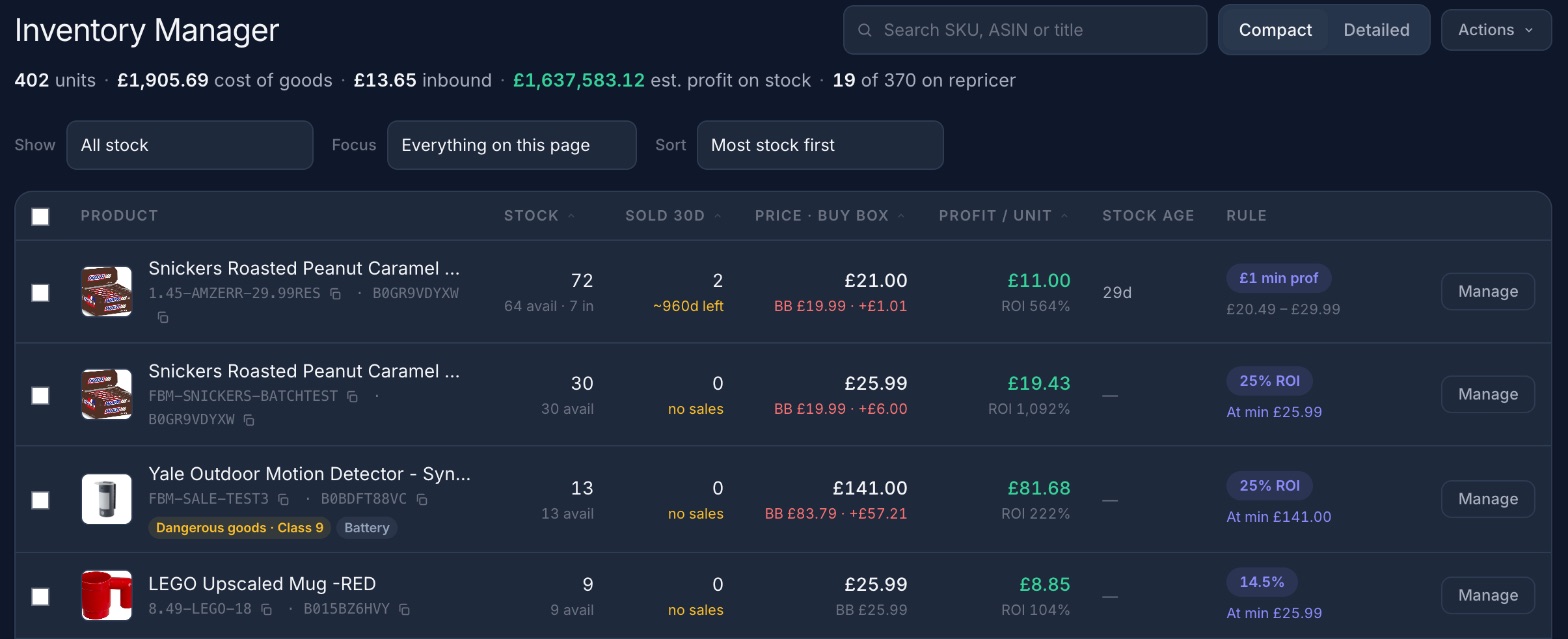
The facts line
Under the page title is a line of totals for your whole account: units in stock, the cost of goods of that stock, the value of stock on its way in (inbound), the est. profit on stock if it all sold at current prices, and how many of your listings are on the repricer.
1Find a listing
Type in Search SKU, ASIN or title and press Enter. To narrow the list instead, use the three dropdowns under the facts line:
- Show picks which listings load, for example In stock, Inbound or No COGs entered.
- Focus narrows the listings on the page to the ones that need a look, such as Losing money.
- Sort orders the whole list by most stock or newest shipments, or the current page by profit, 30 day sales or price.
Clear all resets them. Every filter is explained in how to find problem listings. The list shows 20 listings a page, with page links at the bottom.
2Choose Detailed or Compact
The page opens in Detailed view: one card per product with everything about it. Compact shows a table, one row per listing, which is quicker to scan. SellerFuse remembers which one you click.
What the Compact table shows
- Product: the title and image, with labels for a deleted listing, dangerous goods or batteries.
- Stock: total units, with how many are available and how many are inbound.
- Sold 30d: units sold in the last 30 days, and roughly how many days your available stock lasts at that rate.
- Price · Buy Box: your price and the Buy Box price. A tick means you hold the Buy Box. Otherwise it shows how far you are above or below it.
- Profit / unit: profit on one unit at your current price, with the ROI.
- Stock age: days since Amazon received the shipment your next unit sells from. Over 180 days is highlighted, and over 270 days more strongly.
- Rule: the repricing rule the listing is on, and its price guard.
Use the copy buttons next to a SKU or ASIN to copy it in one click.
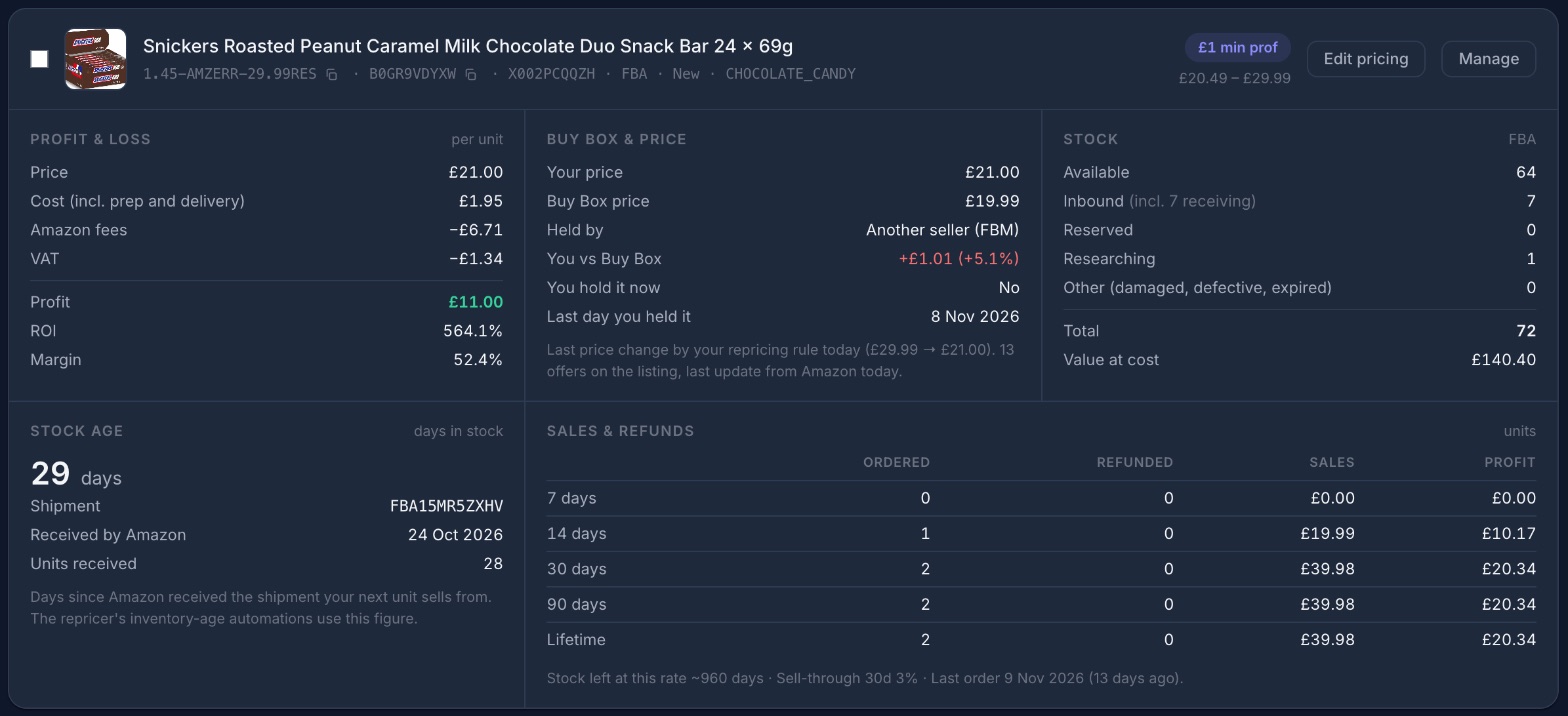
What a Detailed card shows
Each card has the product, its SKU, ASIN and fulfilment, its rule and price guard, and five panels:
- Profit & loss: price, cost including prep and delivery, Amazon fees, VAT, then profit, ROI and margin per unit.
- Buy Box & price: your price, the Buy Box price, who holds it, the gap, whether you hold it now and the last day you did.
- Stock: available, inbound, reserved, researching and other units, and the value of the stock at cost.
- Stock age: the days, the shipment it comes from and when Amazon received it.
- Sales & refunds: units ordered and refunded, sales and profit for 7, 14, 30 and 90 days and lifetime, how long your stock will last and when the last order was.
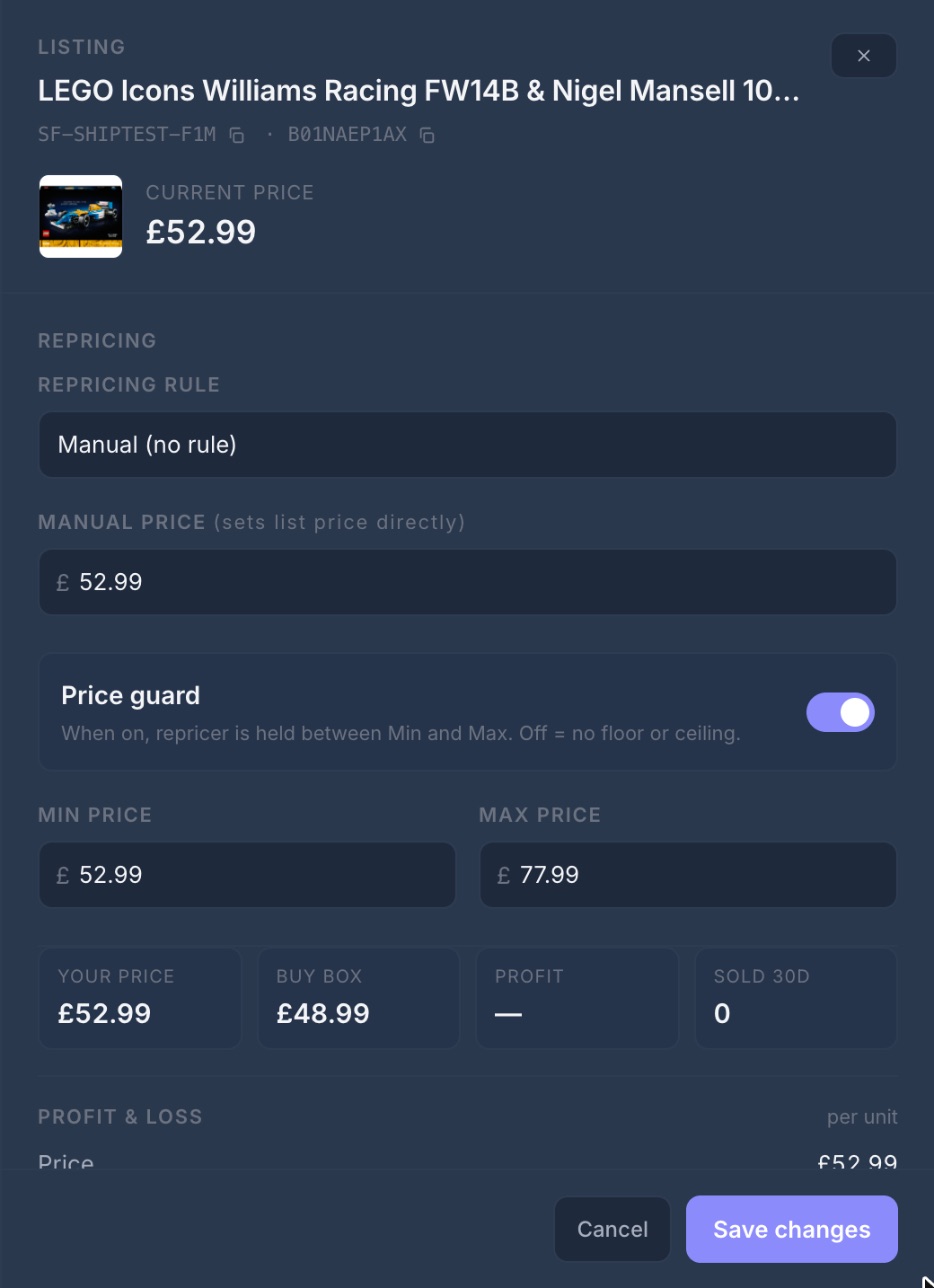
3Change a price, rule or guard
Click Edit pricing on a card, or click a row in Compact view. A panel opens on the right.
- Pick a Repricing rule, or Manual (no rule) to set the price yourself.
- On Manual, type the new price in Manual price. If you are not on the Buy Box, a Use Buy Box price button fills it in for you. It does not save on its own.
- Turn on Price guard to hold the repricer between a Min price and Max price.
- Click Save changes.
If a manual price is a large change from the current one, or below your cost, SellerFuse asks you to check it first. The price goes to Amazon when you confirm. The panel also shows the listing's figures and its competitors. See how to set up the repricer for rules.
4Change many listings at once
Tick the box on each listing, or the box in the heading to select all on the page. A bar appears at the bottom. Choose a rule from Apply rule… and click Apply, or click Guard on or Guard off to switch price guards for all of them.
5Manage a single product
Click Manage on any listing to open its Manage panel, with tabs for stock, cost of goods, competition, analytics, price history and actions such as printing FNSKU labels. See how to manage a single product.
The Actions menu
Click Actions at the top right for:
- Needs attention, checked daily: Restock suggested, Dead listings, Expiring stock and VAT rate check, each with a count. Click one to see the listings and act on them.
- Upload min/max by CSV: set price guards for many listings from a spreadsheet.
- Classic Inventory Manager: the previous version of this page.
Under the table
Three panels sum up your stock: Stock by category (your top six categories), Stock age (days) and Inventory status, with units and cost for each status.
Common questions
Why is profit blank on some listings?
Profit needs a saved fee estimate at your current price. If the listing is not on an active repricer rule, or its price has just changed, there may not be one yet. Hover over the dash to see why.
Why does a listing say no cost set?
There is no cost of goods for it, so profit counts the cost as zero. Add the cost to see true profit.
Why is there no Buy Box on a listing with no stock?
With no stock available, Amazon stops sending offer updates, so there is no current Buy Box to show.
Still stuck?
Members get priority live chat from inside SellerFuse, from our UK team. Not a member yet? Ask in our Discord community, which is open to everyone.