Help Centre / Reimbursements and shipments
How to check Amazon reimbursements against your cost of goods
See every payment and clawback from Amazon next to what the stock cost you, and spot reimbursements that paid less than you spent.
Why sellers use it
- See every Amazon reimbursement next to what the stock cost you, line by line.
- Spot payments below your cost that are worth an appeal.
- See clawbacks against the payment they undid, so your totals stay honest.
Amazon pays you back for stock it loses or damages, but the amount is not always what the stock cost you, and sometimes it takes the money back later. The Reimbursements tab lists every payment and clawback in plain words, puts your cost beside each one, and flags the ones that came in short.
Where to find it
In the menu, open Amazon, then Reconciliation, and click the Reimbursements card or the Reimbursements tab.
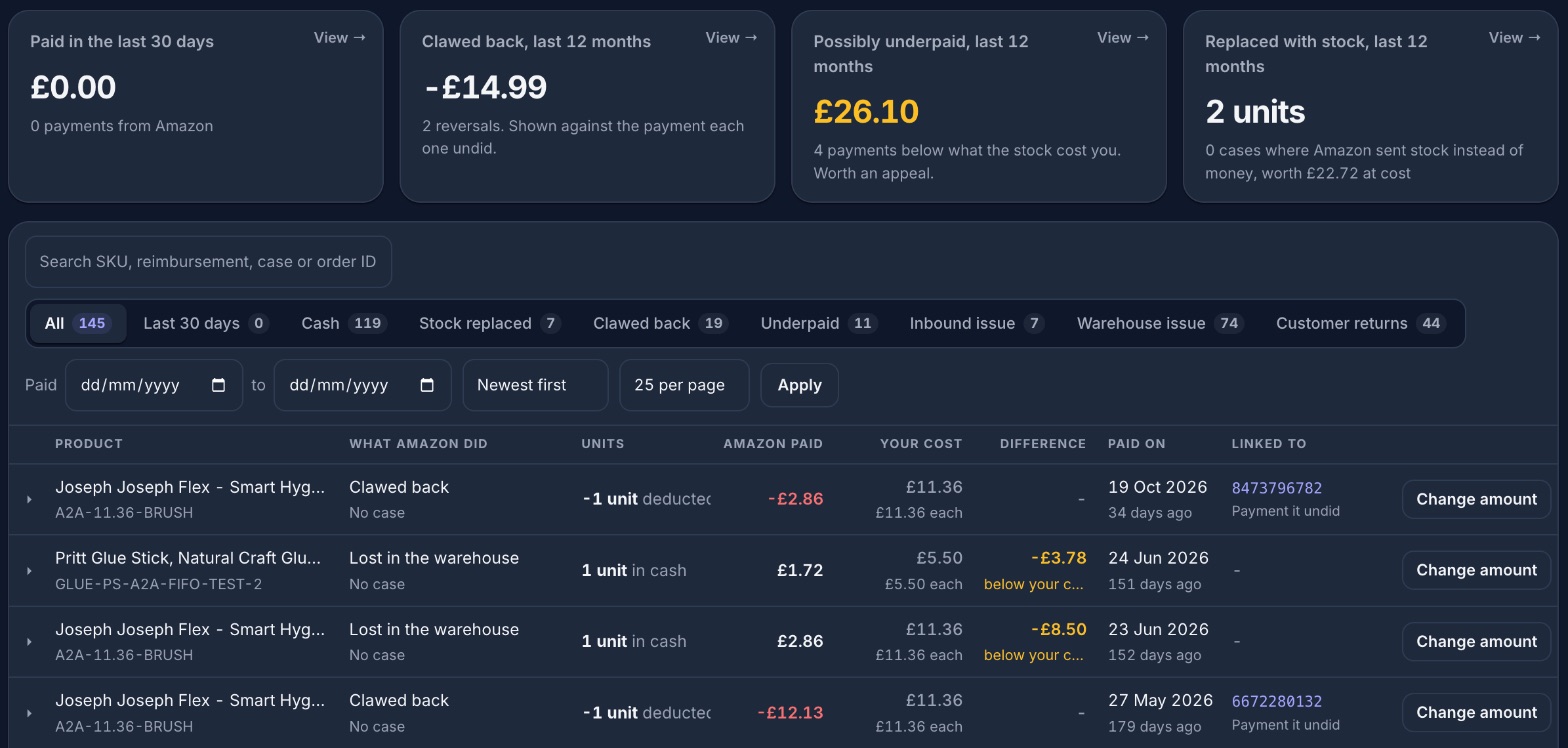
1Read the four cards
Each card is a filter:
- Paid in the last 30 days: how much Amazon paid you and in how many payments.
- Clawed back, last 12 months: reversals, each shown against the payment it undid.
- Possibly underpaid, last 12 months: payments below what the stock cost you.
- Replaced with stock, last 12 months: cases where Amazon sent stock instead of money, and what that stock is worth at cost.
2Filter to what you want
The quick filters cover All, Last 30 days, Cash, Stock replaced, Clawed back, Underpaid, Inbound issue, Warehouse issue and Customer returns. Search by SKU, reimbursement, case or order ID, pick a paid date range, and sort by Newest first, Oldest first, Largest amount or Most underpaid. Click Apply.
3Read each row
| Column | What it shows |
|---|---|
| Product | The product name and SKU. |
| What Amazon did | The reason in plain words, with the case or order it relates to. |
| Units | Units paid in cash, units replaced in stock, or units deducted on a clawback. |
| Amazon paid | The amount Amazon paid or took back. |
| Your cost | What those units cost you, and the cost per unit. |
| Difference | Amazon paid less your cost. |
| Paid on | The date Amazon approved it. |
Your cost uses your cost of goods for the SKU, including prep and delivery, and without VAT if you are VAT registered. If a SKU has no cost, the row says No cost price. Add the cost to compare it.
4Appeal the underpaid ones
Click Possibly underpaid, last 12 months to see only the payments below your cost. To claim the difference, open the Appeals Hub and choose Paid below my cost. It writes the dispute for you. Amazon only re-evaluates against the product cost itself (not prep or delivery), so the Appeals Hub uses that figure and may show a smaller amount than this tab.
Change the amount for your own records
If your accountant needs a different figure for a row, click Change amount, enter the Amount to use and say Why. Amazon's own figure is kept and shown beneath yours. Use Edit amount to change it again.
Common questions
Why does a reimbursement show a minus amount?
That is a clawback, where Amazon took a payment back, for example because the item was found. It is shown against the payment it undid.
Amazon replaced my stock instead of paying. Where does that show?
Under Stock replaced. The row shows the units returned to your stock, and the card shows their value at your cost.
Does Change amount alter anything at Amazon?
No. It only changes the figure SellerFuse uses for that row. Amazon's figure is kept.
Still stuck?
Members get priority live chat from inside SellerFuse, from our UK team. Not a member yet? Ask in our Discord community, which is open to everyone.